
Overview
Nexa Beep is a local network (LAN) messenger that needs no server address, no account sign-up, and no contact registration. When you launch the app, people running Nexa Beep on the same network appear in the list automatically; pick one and an encrypted conversation starts right away. It works with the same interface on Windows, macOS, and Linux, and is made by SosomLab.
This guide is based on v0.5.0 (released 2026-10-10). For an introduction to the app, see the product page.
Key features:
- Launch = join — People on the same LAN show up in the list automatically. There is nothing to enter before your first conversation.
- End-to-end encryption — All chats and files are encrypted between the two devices with Noise_XX (X25519 · ChaCha20-Poly1305 · BLAKE2s). Even when traffic passes through a relay server, only the two devices can read the content.
- Identity based on key fingerprints — Contacts are identified by their device key fingerprint, not their name. If needed, you can compare fingerprints over another channel and mark a contact as “Verified”.
- Safe file receiving — Received files must go through quarantine → scanning → human approval before you can take them out, and the app never executes received files.
- Large transfers and resume — Files of 10 GB and more are sent without loading them into memory, and if the connection drops, the transfer resumes from where it left off.
- Group chat — Bring several contacts together to chat and send files in one room.
- Linking your own devices (multi-device identity) — Your PCs that share the same handle and pairing secret recognize each other as “My device”, continue conversations across devices, and devices that were off catch up on missed conversations (v0.4.0–v0.5.0).
- Connect with people on other networks — With the optional relay server (default
beepd.sosomlab.com), you can chat with people on different networks, such as home ↔ office. The server cannot see content and stores nothing. - Tray residency · notifications · auto-start, a UI in 4 languages (한국어 · English · 中文 · 日本語), and a CLI terminal client.
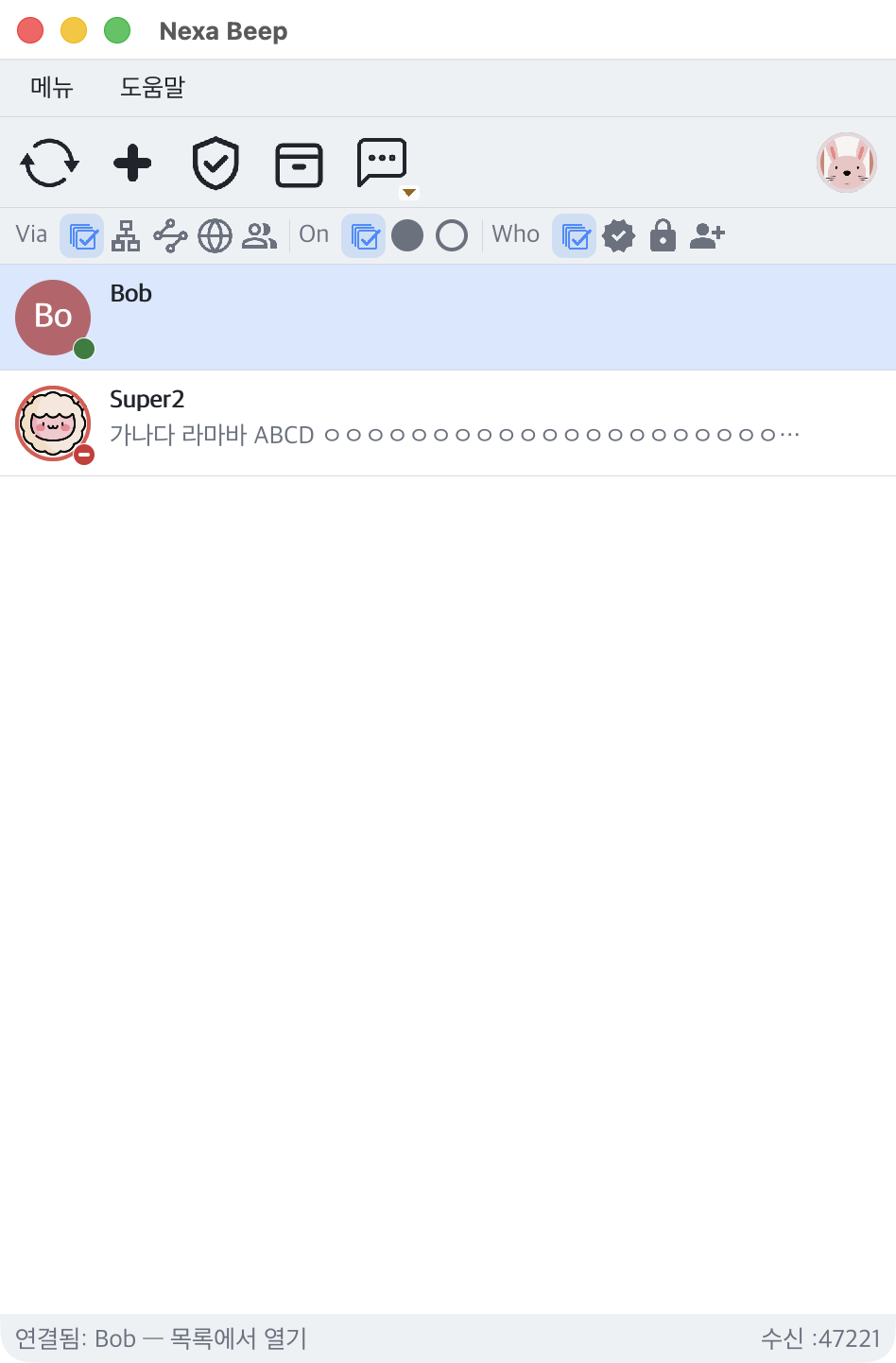
Note The screenshots in this guide were taken around v0.2.14. The basic layout is the same, but the settings screen was redesigned in v0.3.0, so settings are described in text only.
Note Non-commercial use is free and no features are locked. Commercial use requires a separate license (see License below · PolyForm Noncommercial 1.0.0).
System Requirements
| Item | Requirement |
|---|---|
| Windows | Windows 10 / 11 — x64 · ARM64. No Visual C++ Redistributable or .NET required (since v0.2.16) |
| macOS | macOS 11 (Big Sur) or later — native assets for Apple Silicon (arm64) and Intel (x64) |
| Linux | x64 only. .deb (Ubuntu 22.04+ · Debian 12+) · .rpm (Fedora · RHEL family, since v0.3.0) · portable tar.gz |
| Permissions | No administrator rights required (the Windows installer also installs per user) |
| Network | No internet connection is needed within the same LAN. Uses UDP 47100 for discovery and TCP 47200 (default) for chat sessions |
| Connecting across networks | Internet connection needed only when the relay server is enabled (default server beepd.sosomlab.com:47300, TCP+UDP) |
| Memory | Targeted at about 25 MB or less while idle in the background (per the repository’s performance docs) |
Note The app is not yet code-signed or notarized. On Windows you may see a SmartScreen warning (“Unknown publisher”), and on macOS Gatekeeper may block it. Follow the guidance in the installation steps below.
Installation and Removal
All installation channels come from tagged releases on GitHub. There are two distribution formats: installer and portable.
- Installer — Windows NSIS installer, macOS
.dmg, Linux.deb/.rpm. - Portable — Extract and run. Settings, identity, and history are created in a
data/folder next to the executable, so you can move the whole folder around.
Releases page: github.com/SosomLab/nexa-beep/releases
Distribution Channel Status
The latest release is v0.5.0 (2026-10-10). Each package manager publishes at a different time (per the repository docs, 2026-10-10).
| Channel | OS | Published version | Status |
|---|---|---|---|
| GitHub Releases | All | 0.5.0 | Latest |
Homebrew (kiros33/tap) | macOS | 0.5.0 | Updated automatically with each release |
APT / DNF (pkg.sosomlab.com) | Linux | 0.5.0 | Updated automatically right after each release |
| Chocolatey | Windows | 0.3.0 | 0.3.0 approved (2026-10-10). 0.5.0 to be reviewed after submission |
| winget | Windows | Portable 0.2.17 | Installer package awaiting review |
Note If you need the latest version on Windows, download the files directly from GitHub Releases. Once review is complete, winget and Chocolatey will install the new version with the same commands.
Windows — Installer (Recommended)
- Download
nexa-beep-<version>-windows-x64-setup.exefrom the releases page. For ARM64 PCs, download thewindows-arm64file. - Run it to install per user. It does not ask for administrator rights (UAC), and the install location is
%LOCALAPPDATA%\Programs\NexaBeep. - Launch it from the finish screen, or open Nexa Beep from the Start menu.
For a silent install, use the /S option.
.\nexa-beep-0.5.0-windows-x64-setup.exe /SWindows — Portable
- Download
nexa-beep-<version>-windows-x64-portable.zipand extract it to a folder of your choice. - Double-click
nexa-beep.exe.
Caution Do not delete
nbeep-imgdec.exein the same folder. It is a helper program that decodes images in a separate isolated process. Without it, initial avatars are shown instead of photos and image previews do not work.
Windows — Package Managers
# Chocolatey (published version: 0.3.0)
choco install nexa-beep              # installer
choco install nexa-beep-portable     # portable

# winget (published version: portable 0.2.17)
winget install SosomLab.NexaBeep.Portable
Windows — On First Launch
- If Windows Firewall asks whether to allow network access, choose Allow. It is needed for discovery (UDP 47100) and chat (TCP 47200).
- If SmartScreen shows the “Windows protected your PC” window, continue with More info → Run anyway (this warning appears because the app is not yet code-signed).
macOS — Homebrew (Recommended)
brew install --cask kiros33/tap/nexa-beep- When macOS attaches a quarantine flag to an app that is not signed or notarized, the app is forcibly terminated on launch. Homebrew Cask removes this flag during installation, so this is the recommended method on macOS.
- Update:
brew upgrade --cask nexa-beep
If you need the terminal-only (CLI) portable build, use the following.
brew install kiros33/tap/nexa-beep-portablemacOS — Manual Installation
- Download
nexa-beep-<version>-macos-arm64.dmg(Apple Silicon) ormacos-x64.dmg(Intel) from the releases page. - Open the
.dmgand drag Nexa Beep.app into the Applications folder. - If Gatekeeper blocks it the first time you open it, remove the quarantine flag in Terminal.
xattr -dr com.apple.quarantine "/Applications/Nexa Beep.app"Note On first launch, macOS may ask for permission to access the local network and to show notifications. Allow both so that contact discovery and desktop notifications work.
Linux — APT Repository (Ubuntu · Debian)
Register the pkg.sosomlab.com repository once and you can receive updates with apt upgrade.
sudo curl -fsSLo /usr/share/keyrings/sosomlab-archive-keyring.gpg https://pkg.sosomlab.com/sosomlab-archive-keyring.gpg
sudo curl -fsSLo /etc/apt/sources.list.d/sosomlab.sources https://pkg.sosomlab.com/apt/sosomlab.sources
sudo apt update && sudo apt install nexa-beep
Linux — DNF Repository (Fedora · RHEL Family)
sudo curl -fsSLo /etc/yum.repos.d/sosomlab.repo https://pkg.sosomlab.com/rpm/sosomlab.repo
sudo dnf install nexa-beep
Linux — Installing Package Files Directly · Portable
# deb (Ubuntu 22.04+ · Debian 12+)
sudo dpkg -i nexa-beep-0.5.0-linux-x64.deb

# rpm (Fedora · RHEL family)
sudo dnf install ./nexa-beep-0.5.0-linux-x64.rpm

# portable
tar xzf nexa-beep-0.5.0-linux-x64-portable.tar.gz && ./nexa-beep
Caution
.debpackages of v0.2.17 and earlier had a problem where they would not run on Ubuntu 22.04 · Debian 12 (an error in the required glibc version declaration). Use v0.3.0 or later.
Note To use the tray icon on the GNOME desktop, the AppIndicator extension is required.
Verifying Downloaded Files (Optional)
Each release includes a SHA256SUMS.txt. You can compare the hash of a downloaded file against this list.
# Windows
(Get-FileHash .\nexa-beep-0.5.0-windows-x64-portable.zip -Algorithm SHA256).Hash
# macOS · Linux
shasum -a 256 nexa-beep-0.5.0-linux-x64-portable.tar.gzUpdating
- Homebrew · APT · DNF · Chocolatey · winget: Use each package manager’s upgrade command.
- Installer: Simply run the new version’s installer to overwrite the existing one. Identity, settings, and history are preserved.
- Portable: Replace the executable with the new version, but leave the
data/folder as is.
Note In locations where the whole folder is replaced on upgrade, such as a macOS
.appor Homebrew, data is kept in the user folder (~/Library/Application Support/nexa-beep) rather than inside the app (since v0.2.9). So your identity is not lost when you upgrade.
Removal
| Installation method | How to remove |
|---|---|
| Windows installer | Remove Nexa Beep under Settings › Apps › Installed apps (or run uninstall.exe in the install folder) |
| Chocolatey | choco uninstall nexa-beep |
| winget | winget uninstall SosomLab.NexaBeep.Portable |
| Homebrew | brew uninstall --cask nexa-beep (to remove data as well, brew uninstall --zap --cask nexa-beep) |
| APT / deb | sudo apt remove nexa-beep |
| DNF / rpm | sudo dnf remove nexa-beep |
| Portable | Delete the extracted folder (the data/ folder inside it is deleted too) |
Caution The Windows uninstaller removes only the installed files and leaves user-created data (identity key, chat history, etc.) in place. To remove everything, delete the data folder described in Data and Privacy below yourself. If you plan to move to another device before deleting, back up your identity key first.
Note Launch at system startup is on by default. If you turn off Auto-start in settings before uninstalling, the operating system’s auto-start registration is cleaned up properly.
Getting Started
First Launch
- Open the installed app or double-click the portable
nexa-beep. - The list screen appears right away. You are not asked for a server address, an account, or contact registration.
- People running Nexa Beep on the same LAN appear in the list automatically.
- Double-click a contact, or select one and press Enter, to open a conversation. The first time, an encrypted session is established in under a second.
Your default display name is your computer name with anything that looks like a real name stripped out. If that is hard to determine, it takes the form beep-<8-character fingerprint>. You can change it in your profile by clicking My avatar at the far right of the toolbar.
If You Cannot See Other People
- Check that you are on the same network (same router, same corporate network). Guest Wi-Fi or separate VLANs may block discovery signals.
- Click the Rediscover button on the toolbar.
- If they still do not appear, enter their IP directly with ⌘/Ctrl+K (see Connect Directly by Address).
- For people on a different network, use the relay server connection.
Launching from a Terminal
Double-clicking is the default way to launch, but you can use the following options from a terminal.
| Command | Action |
|---|---|
nexa-beep | Window mode + real network discovery (same as double-clicking) |
nexa-beep --port 47210 | Set the session listening port for this run only (falls back to a random port if in use) |
nexa-beep --chat-live [name] | Terminal-only CLI client (see CLI Terminal) |
nexa-beep --whoami | Print my fingerprint · name · executable path · data path |
nexa-beep --license status | Check license status (see License) |
nexa-beep --version | Print the version |
nexa-beep --help | Show all options |
Note The notation
⌘/Ctrlmeans ⌘ (Command) on macOS and Ctrl on Windows and Linux.
Screen Layout
List Screen
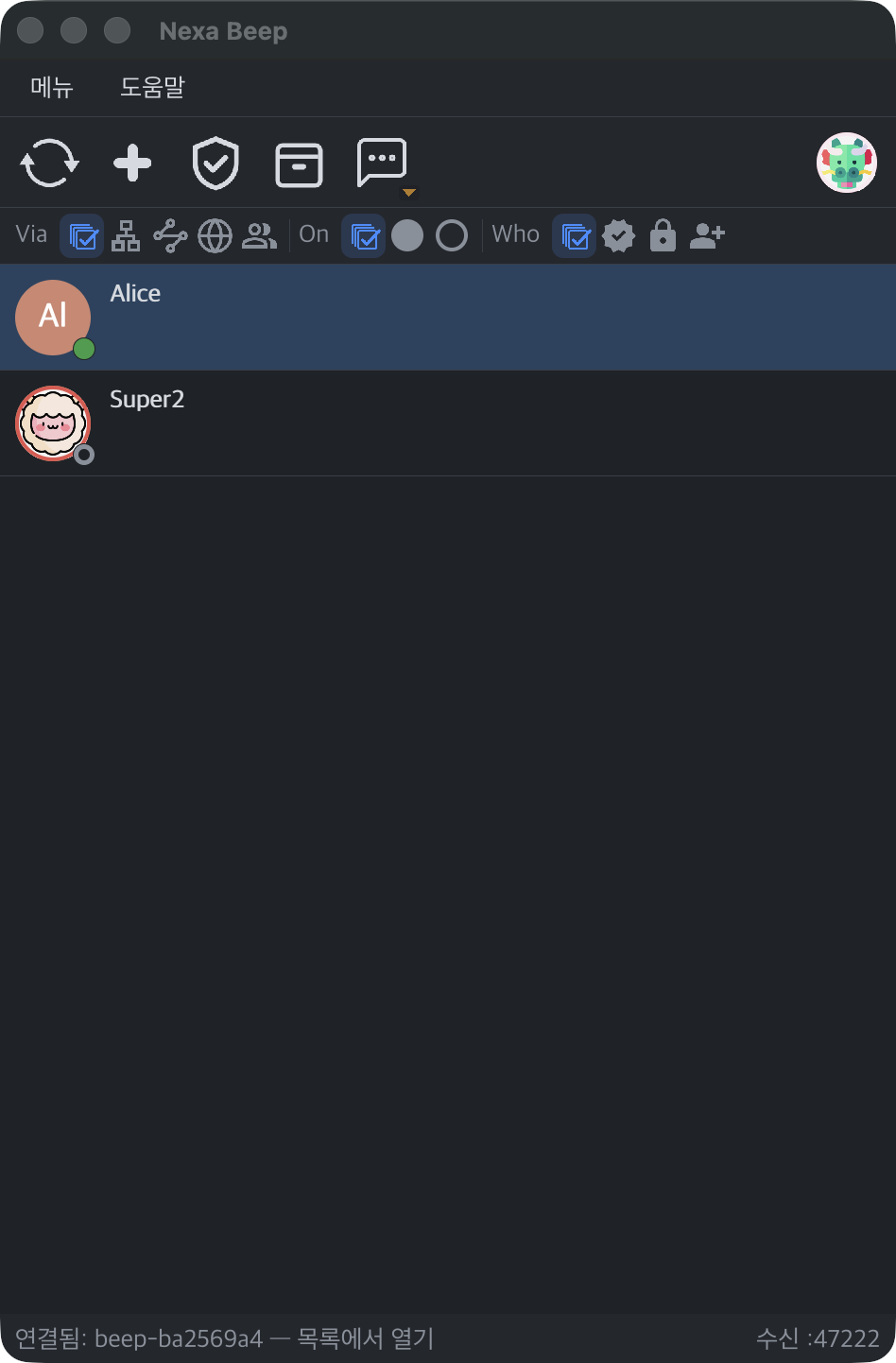
| Location | Contents |
|---|---|
| Toolbar, left | Rediscover (refresh the list) · Add by address (⌘/Ctrl+K) · Quarantine (holds and approves received files) · Vault (files released from quarantine) · Conversations (saved conversation list · announcements) |
| Toolbar, right | Server connection indicator (when the relay is on) · My avatar (opens my profile) |
| Filter bar | Via (route: All · Local · Server · Internet · Group) · On (presence: All · Online · Offline) · Who (trust: All · Verified · Pinned · New). Multiple chips combine with AND, and your selection persists across restarts |
| List row | Avatar · name · status dot · trust badge · unread message count |
| Status bar | A one-line latest event and Listening :port (the session port actually being listened on in this run) |
| Light | Dark |
|---|---|
|  |
Reading Status Dots and Badges
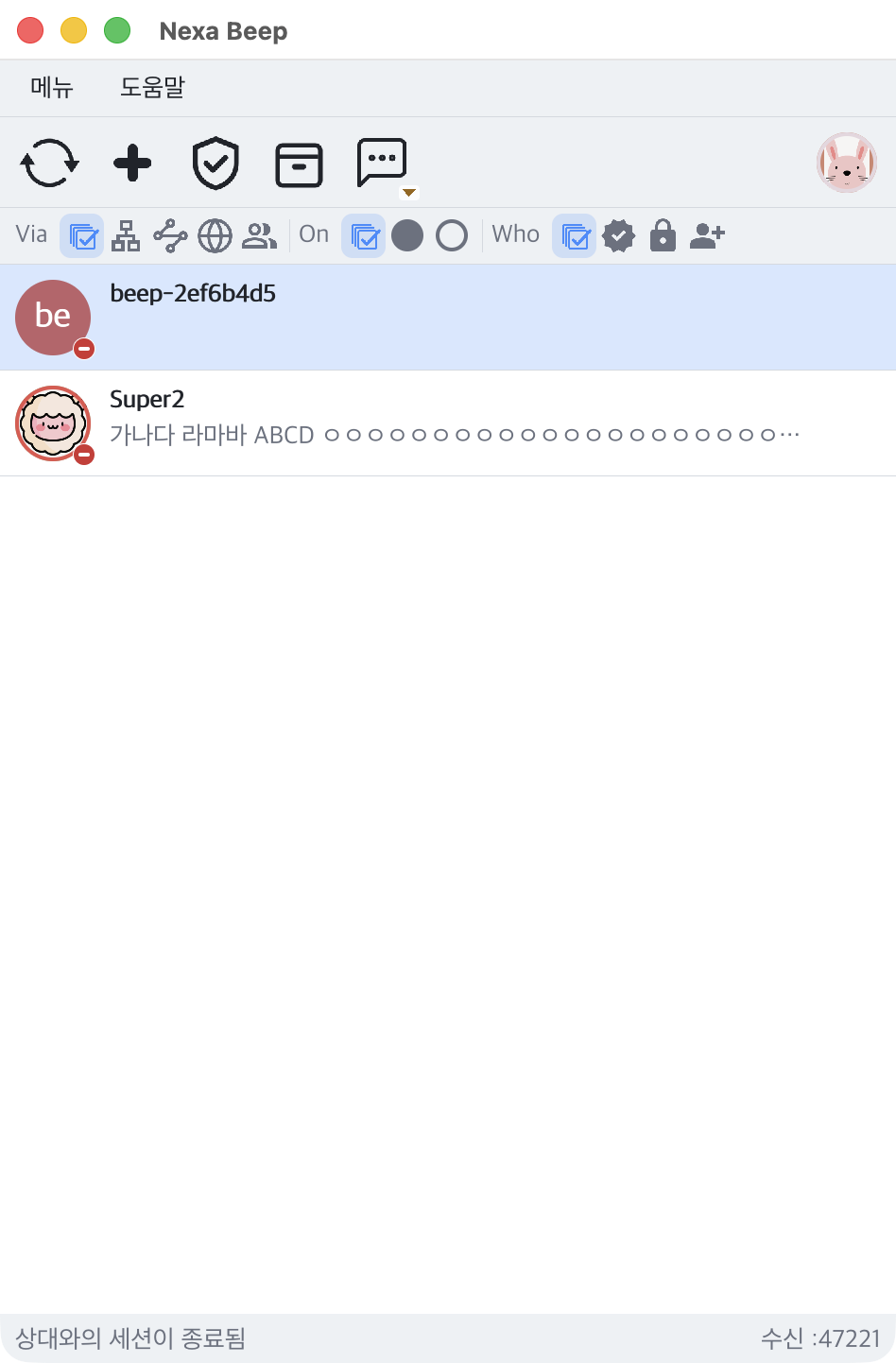
| Indicator | Meaning |
|---|---|
| Green dot | Online — can connect now |
| Gray dot | Offline |
| Red dot (−) | Connection just dropped |
| Check badge | Pinned (TOFU) — the key from the first meeting is remembered |
| Solid blue badge | Verified — a contact whose fingerprint was confirmed over another channel |
| Purple badge | My device — another of my PCs linked with the same handle and pairing secret |
| ⚠ mark | Name conflict — the same name (or the same handle) is used by a different key |
| Number badge | Unread message count |
Contacts with any chat history, a pin, or a manual address remain in the list even when offline. Offline rows for contacts who have not made their name public, or whose profile has not been received yet, appear as beep-<8-character fingerprint>.
Menus
| Menu | Items |
|---|---|
| Menu | Settings · Quarantine · Conversations · Send announcement… · Quit |
| Help | License… · About |
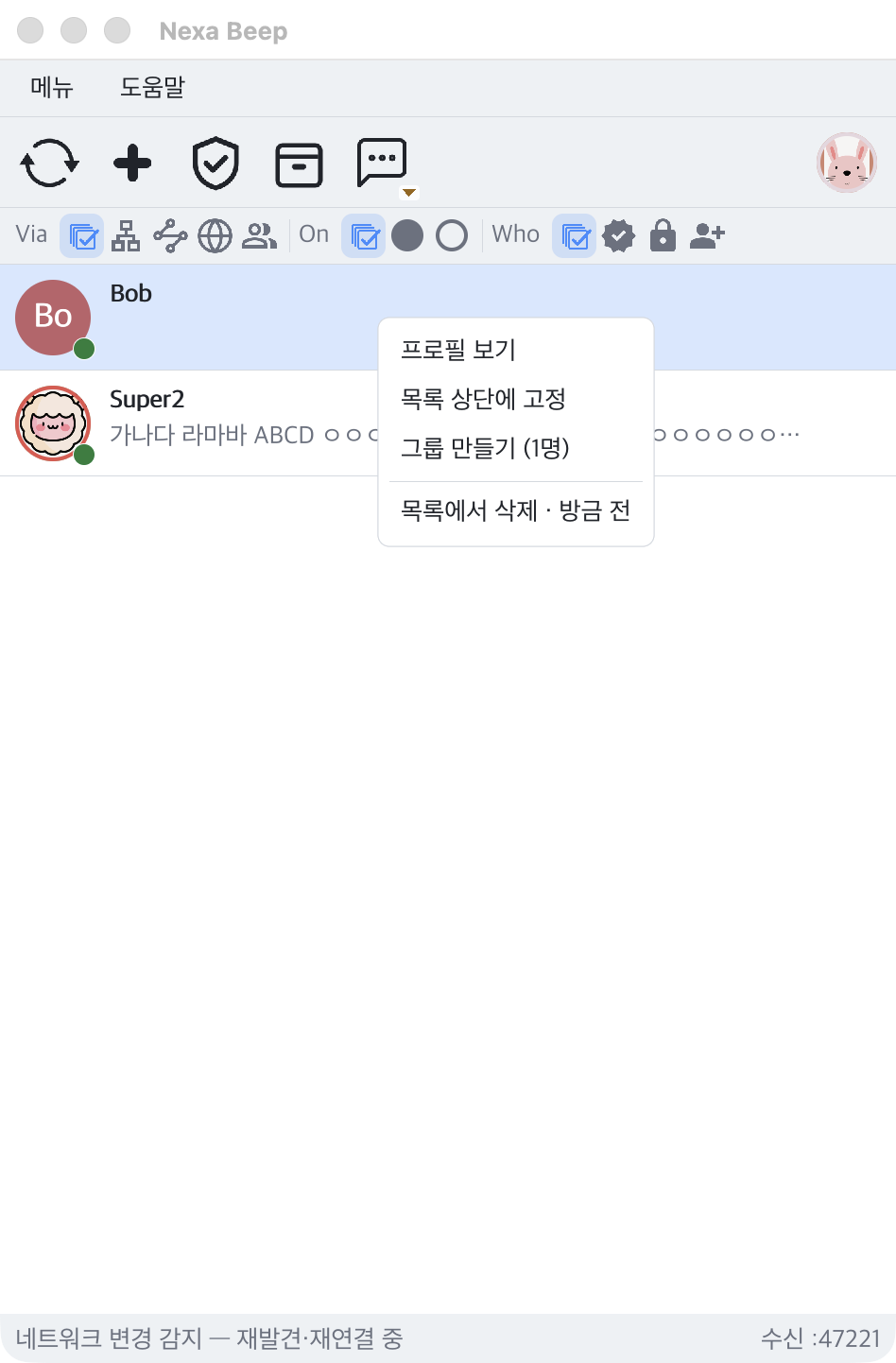
List Row Context Menu
| Item | Action |
|---|---|
| View profile | Open the contact’s profile card |
| Pin to top / Unpin | Keep at the top regardless of sorting (persists across restarts) |
| Create group (N people) | Create a group room with the selected contacts |
| Remove from list | Forget this contact — deletes the pin, history, and manual address, and discards the chat history’s data key so it cannot be recovered |
Quick Find in the List
On the list screen, just type the first letters of a name to jump to that contact. It also matches the profile display name (e.g. kiros33@mac).
- Move with ↑ / ↓; it wraps around from the end to the beginning.
- Korean names can be found too. On Linux, turn on Korean mode with the Han/Eng key and type the jamo (v0.3.1). Where the Han/Eng key does not work, switch with Right Alt alone or Shift+Space. The current input mode is shown in the status bar.
- In Settings › Appearance › List, you can turn off quick find or change how long typed input is kept (0.2–60 seconds).
Chatting
Opening a Conversation and Window Modes
Double-click a contact in the list or press Enter. The chat window opens in one of two modes. Choose it in Settings › Chat › Chat window mode; it applies from the next conversation.
| Mode | Behavior |
|---|---|
| Single window | The conversation opens in place of the list; press Esc to return to the list |
| Separate windows | A separate window opens for each contact so you can view several conversations at once |
| Separate windows | Single window (dark) |
|---|---|
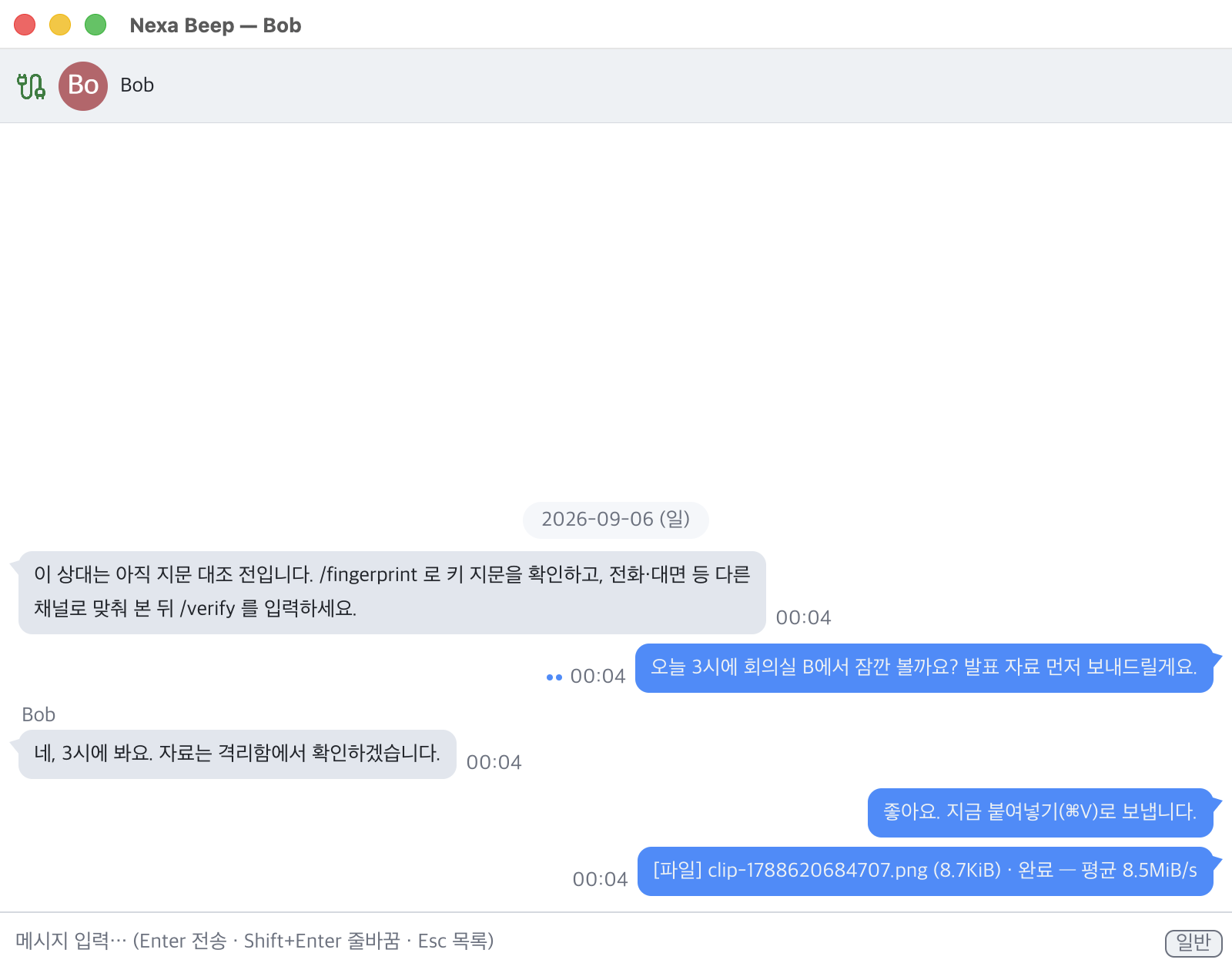 | 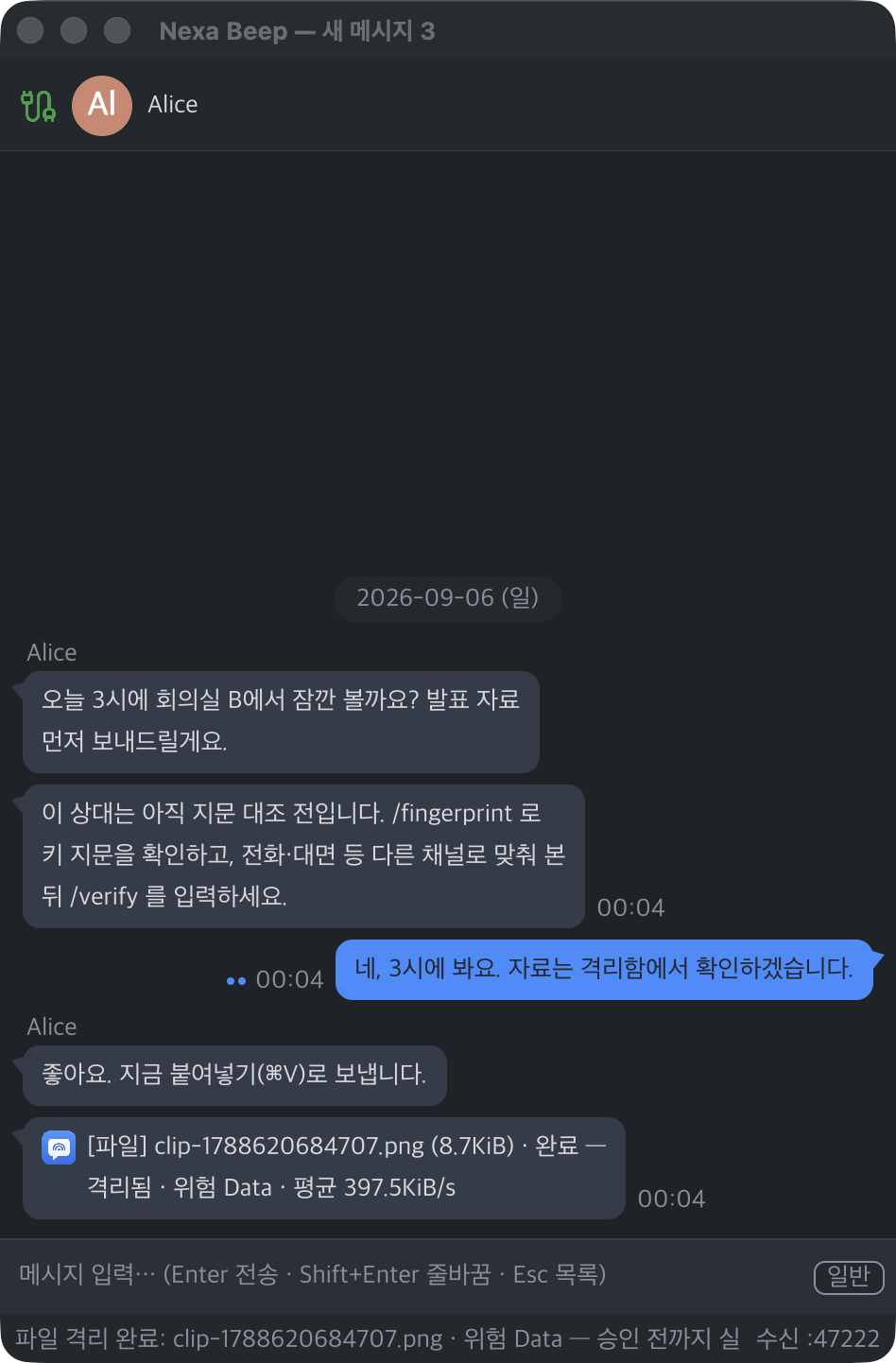 |
The top of the chat window (header) shows the contact’s avatar and name, along with a connection route badge.
| Route badge | Meaning |
|---|---|
| (no badge, or Local) | Direct connection on the same LAN |
| Via server (blue) | Connection established through the relay server |
| Via internet (orange) | Connection across the internet, registered directly by IP or domain |
Sending Messages
- Type in the input box at the bottom.
- Press Enter to send. Press Shift+Enter for a new line.
- Click the priority button at the bottom right (
Normal) to change this message’s priority to Normal / Notice / Urgent. How strongly the notification appears on the other side is determined by the recipient’s settings.
The dots next to your message bubbles show delivery status.
- One dot = Delivered to the contact’s device
- Two dots = Read by the contact
Note Each person decides in Settings › Chat whether to send delivery and read receipts. No dots does not mean the contact did not receive it (you cannot distinguish between the contact having turned off receipts, being offline, or failing the verification conditions).
When the Contact Is Offline — Offline Queue
You can send messages even when the contact is offline. Sent messages are held in the offline queue (up to 200 messages, persists across restarts) and delivered automatically when the contact reappears.
Caution The offline queue delivers only while your PC is on. The server does not store messages for you while both sides are off.
Chat Input Commands
In the input box, a line that starts with / is a command, not a message. Commands are processed only on your own device and are not sent to the contact.
| Command | Aliases | Action |
|---|---|---|
/help | /? · /명령 | Show the command list |
/fingerprint | /fp · /지문값 | Print my fingerprint and the contact’s fingerprint (for comparison) |
/verify | /sas · /지문 · /대조 | Mark this contact as Verified |
/unverify | /대조취소 | Cancel verification (revert to pinned) |
/trust | /신뢰 | Print the current trust status in one line |
/notice | — | Send this message with Notice priority |
/urgent | — | Send this message with Urgent priority |
/close | /quit · /q · /닫기 | Close the chat window (chat history is kept) |
Whether a line is a command is determined by its first character.
- If you add a leading space (e.g.
/help), it is sent as a normal message. - To send a sentence starting with
/, start it with//(//hello→ the message/hello). - If you write a second line after the command line with Shift+Enter, the whole thing is sent as a message.
- Mistyped commands (e.g.
/verifed) are neither sent nor executed; only a hint is shown.
Sending Announcements
With Menu › Send announcement…, you can send an announcement to everyone currently discovered at once. Announcements are limited to one every 3 seconds. If you do not want to receive announcements, turn on Don’t receive announcements in Settings › Chat › Notifications.
Conversations — Managing Saved Conversations
Manage saved chat history from Conversations on the toolbar (or Menu › Conversations).
- List · preview · filter · click to open
- Delete a conversation (two-step confirmation) — deleting discards that conversation’s data key, so it cannot be recovered.
- Back up and restore chat history (kept sealed as is) — see Choosing and Saving Files
Sending Files and Images
How to Send
All three methods go through the same safety procedure.
- Drag and drop a file onto the chat window
- Press ⌘/Ctrl+V in the chat window with an image on the clipboard — it is sent as a PNG file (take a screenshot and paste it right away). Since v0.2.14 this works on all three OSes without external tools.
/send <files…>in the CLI terminal
You can send up to 5 files per request (adjustable from 1 to 5 in settings).
Sender’s View
The message bubble changes in the following order.
Awaiting approval → progress (⏸ pause · ▶ resume · ✕ cancel) → Done — average speed
- Even 10 GB files are streamed without loading them into memory. The file integrity hash is computed during transfer and verified on completion.
- If the connection drops, the received portion is kept sealed, and when you reconnect and send the same file, it resumes from where it left off.
- A transfer left paused for a long time is canceled automatically (default 2 minutes, Settings › Files).
- The recipient’s receive size limit is checked before sending, so you are told about files that are too large before the transfer starts.
Recipient’s View — Approval Window
When a file request arrives, an approval window appears. Check the sender · route badge · number of files · names · sizes, then click Approve or Cancel (shortcuts: approve ⌘/Ctrl+Y · reject ⌘/Ctrl+N).
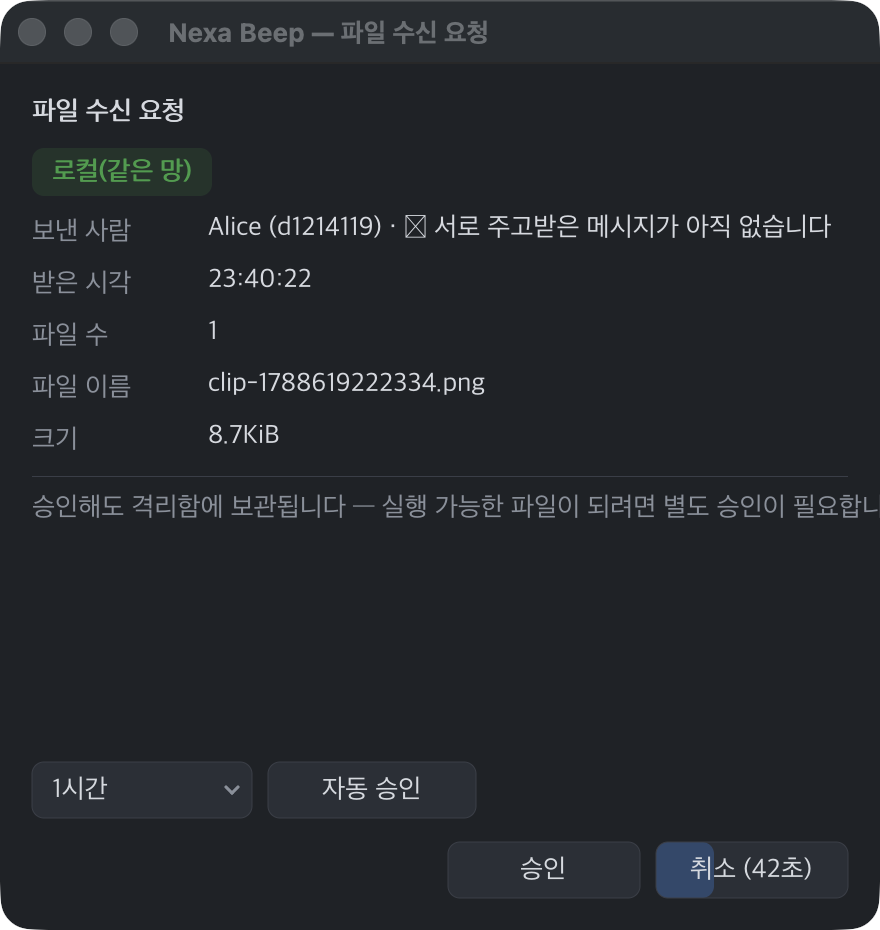
| Indicator | Meaning |
|---|---|
| Route badge | The route the request came in on — Local (same network) / Via server / Internet |
| ”No messages exchanged yet” | Files from a contact you have never exchanged messages with switch to manual approval even if auto-approval is set. This rule prevents a stranger from sending files first |
1 hour ▾ + Auto-approve | Auto-approve this contact for the chosen period |
Cancel (N s) | Automatically canceled on timeout if there is no response (default 60 seconds) |
For a request that sends several files at once, one approval = approve all, one rejection = reject all.
Taking Out Received Files — Quarantine and Vault
Even after approval, the file does not appear in your Downloads folder right away. Regardless of who sent it, it goes through these 4 steps.
- Negotiation — Agree on receive policy, size, and speed.
- Quarantine — The original is not unpacked; it is kept sealed as an encrypted
.beepqin Quarantine (the shield icon on the toolbar). - Scanning — The risk level is determined from the extension and file content (magic bytes). Zip files are not extracted; only their structure is inspected. On Windows, the file is also scanned via AMSI by the antivirus installed on your PC.
- Release after approval — You must approve once more in Quarantine before the file comes out to the Vault (Downloads folder). At this point the hash is checked again, execute permission is removed, and the OS quarantine mark (Windows MotW · macOS quarantine) is attached.
- The recipient’s bubble shows the scan level, such as
Done — quarantined · risk Data. - Images can be previewed even while quarantined (SVG is not supported).
- The app does not execute received files, does not open links automatically, and does not extract archives automatically.
Caution “Scanned (nothing detected)” is only the verdict of your installed antivirus and does not guarantee safety. Whether to run a released file is up to you; from there, the operating system’s protections (SmartScreen · Gatekeeper) take over.
Exchanging Files with People on Other Networks
- Sending files to contacts via server or via internet is off by default. You must turn on “Send files to via server contacts” and “Send files to via internet contacts” in Settings › Network › Server. For direct internet contacts, sending is also enabled once you complete fingerprint verification (
/verify). - Receiving is not restricted regardless of route. Instead, the approval window shows a route badge, so check it before deciding.
- These restrictions do not apply between your own devices (the same user).
Group Chat
Creating a Group
- Select multiple contacts in the list with ⌘/Ctrl+click (you can also toggle selection with ⌘/Ctrl+Space).
- Right-click → Create group (N people).
- The room is created and invitations go out to all members. A room appears on a recipient’s screen only after they accept the invitation.
What You Can Do in a Group
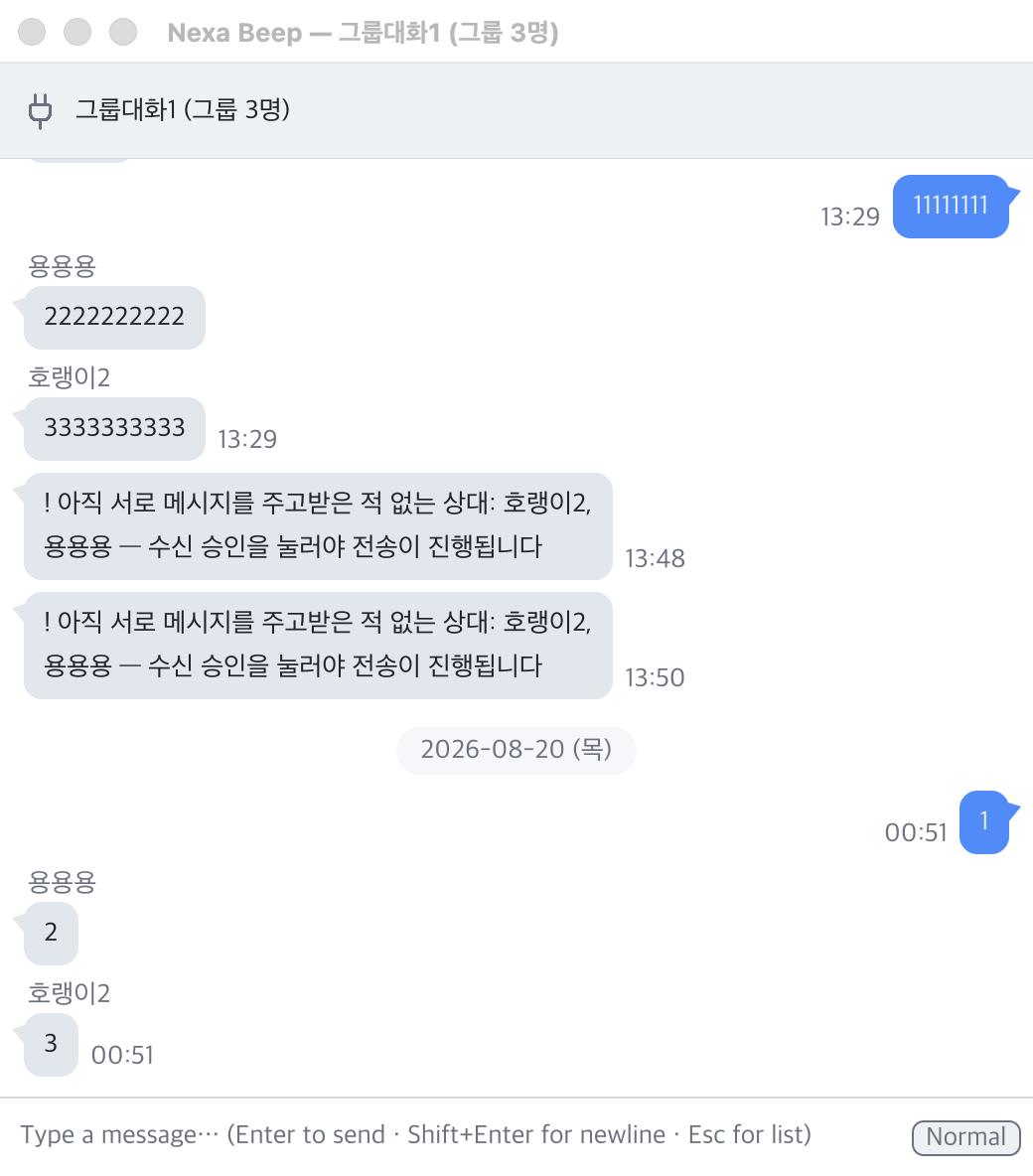
- Open the group row to chat in one room. Bubbles show the sender’s name.
- Files are also sent per room. Each member approves individually, and the sender sees a combined banner and progress counter. Members you have not exchanged messages with yet get manual approval rather than auto-approval.
- Group history is encrypted and saved just like 1:1 conversations, and restored after a restart.
- From the group row’s context menu: Rename · Invite selected people · Remove selected people · Switch invite policy (owner only / members may invite) · Disband group (owner) · Leave group.
Note Group chat is also end-to-end encrypted. Rather than using a separate group key, messages are sent over each member’s 1:1 encrypted session, so traffic grows with the number of members.
Verifying Contacts — Identity and Fingerprint Verification
Identity Is a Key Fingerprint, Not a Name
In Nexa Beep, contacts are distinguished by their device key fingerprint. Names and IP addresses are not the basis.
- On the first connection, the contact’s key is remembered (pinned, TOFU), and afterward only the same key is accepted as the same contact.
- Even with the same name, a different key is treated as a different person, and a name conflict mark (⚠) is shown.
- Pin information is stored encrypted, so it persists across restarts.
Getting to “Verified” by Comparing Fingerprints
When you first chat with someone, a gray notice “This contact’s fingerprint has not been verified yet” is shown. Conversations are always encrypted even without verification, but to be sure the contact really is who they claim to be, check as follows.
- Type
/fingerprintin the chat window to see your fingerprint and the contact’s (or check it on the contact’s profile card). - Compare fingerprints with the contact over another channel, such as by phone or in person.
- If they match, type
/verifyor click Matches — mark as Verified on the profile card.
The list badge changes to the solid blue badge. Notifications from verified contacts appear as regular notifications (unverified contacts are silent), and the restriction on sending files via internet is lifted.
Caution
/verifydoes not do the comparison for you. If you ask “Did you check?” within the same conversation and then promote the contact, someone intercepting in the middle could answer for them. Always compare over another channel.
Profile Card
Open it with right-click on a list row → View profile.
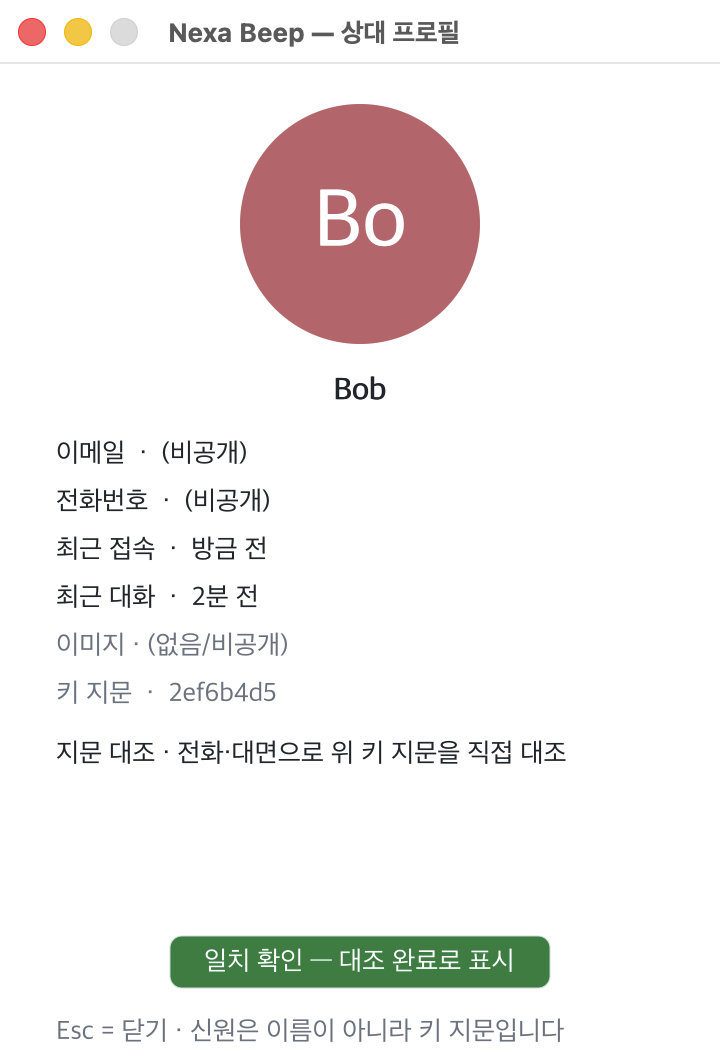
- Email, phone, and similar items are shown only if the contact has made them public.
- Fingerprint copy buttons at the top right: [64] = full fingerprint (the value used for ⌘/Ctrl+K direct connection and relay connection), [8] = short fingerprint.
- For contacts using multi-device identity, a user line (handle) is shown.
My Profile
Click My avatar at the right of the toolbar to open your profile.
- Edit your photo · display name · email · phone · bio. After choosing a photo, you must click [Apply] for it to take effect.
- Turn on public visibility per item (all private by default). Only public items are delivered to connected contacts over the encrypted session. Names and contact details are not included in LAN discovery signals.
- With contacts on the same LAN, profiles sync automatically as soon as they are discovered, so changes appear right away.
Linking Your Own Devices — Multi-Device Identity
This feature is for when you have two or more PCs (e.g. a work PC and a laptop). It is off by default.
How to Turn It On
- In Settings › General › User, turn on the Multi-device identity switch. A handle (a short public name) and a pairing secret are filled in with default values and authenticated right away.
- On your other PC, turn on the same switch and enter the same handle and the same pairing secret.
- The two PCs recognize each other as “My device”. A purple badge appears on the list row, and the profile card shows “My device — authenticated with the same user key”.
- On the same LAN, this works right away without a server. On different networks, both sides meet with the relay server turned on (the server only acts as a meeting point and cannot see content or keys).
- When they first meet, the user IDs of the two PCs are automatically merged into the one created first (in about 30 seconds).
- The pairing secret is known only to your own devices. It is never sent to the server and is stored encrypted on each PC. The generate icon (🔄) turns red on the first click, and you must click it again within 5 seconds to switch to a new secret. The eye icon toggles hide/show.
What Changes Between Your Own Devices
| Feature | Description | Version |
|---|---|---|
| Skip approval and fingerprint verification | Your devices trust each other without approval windows or fingerprint verification. Files are also received without approval (the quarantine and scanning steps remain) | v0.2.15 |
| Sent copies | Messages sent from your other devices also appear in the same conversation on this device | v0.4.0 |
| Collapsing contact devices | If a contact uses several devices, they are collapsed into one row · one conversation, and your messages are delivered to all of the contact’s devices that are on | v0.4.0 |
| Catch-up | When you turn on a device that was off, conversations exchanged on other devices in the meantime come in automatically from sibling devices (latest 200 lines per conversation · 1 MiB per connection). They are placed in chronological order | v0.5.0 |
| Read sync | A conversation read on one device also clears the unread badge on other devices | v0.5.0 |
Note Catch-up transfers text conversations only. File contents remain only on the device that received them.
My Devices List and Lost Devices
In Settings › User › My devices [Open…] (v0.3.1), you can view linked devices in a table — name · short fingerprint · status (this device / connected / offline) · last seen.
- Remove just one device: Click [Revoke] on that row twice within 5 seconds. A new user key is issued, only the selected device is removed, and the remaining devices receive the new key automatically.
- Rotate user key (clean up everything): The Rotate user key button in Settings › User (turns red → click again within 5 seconds). All devices except this PC are revoked. Then change the pairing secret and re-link each device you still have by entering the new secret. On your contacts’ side, the old ID automatically carries over to the new ID.
Note A handle is only a label, not an identity. If a different user key uses the same handle, a ⚠ mark appears in the list. Changing the handle or secret removes authentication, and the feature stops until you re-authenticate (changing the secret does not change your user ID).
Connect Directly by Address
Contacts that discovery signals cannot reach (a different subnet, a network that blocks multicast, etc.) can be registered directly by address.
- Click the Add by address button on the toolbar or press ⌘/Ctrl+K.
- Enter the contact’s address.
- IPv4:
10.0.0.5or10.0.0.5:47200(if the port is omitted,47200) - IPv6:
[fe80::1]:47200 - Domain (DDNS, etc.)
- If the relay server is on, the contact’s 64-character fingerprint
- IPv4:
- Once connected, the contact is added to the list, stays in the list even after you close the chat window, and reconnects to the remembered address.
- If the connection drops, automatic reconnection is attempted at intervals of 5 s → 15 s → 60 s → 5 min, and stops once the limit is reached (click the row to resume).
- Connections that drop silently, such as from a power cut or network outage, are detected within about 22 seconds and shown with a red dot.
Connect with People on Other Networks via a Relay Server
Contacts that are not on the same LAN (home ↔ office, etc.) are reached through a relay server. This feature is optional; if you do not turn it on, the app sends nothing to the internet.
What the Server Does and Cannot Do
| What it does | What it cannot do |
|---|---|
| Tell you whether a contact is connected (using identifiers that change daily) | Read conversation content — all conversations are end-to-end encrypted between the two devices |
| Help two devices learn each other’s public addresses | Build a user directory — only people who already know a contact’s fingerprint can find them |
| Coordinate direct connections (UDP hole punching) — once successful, the server drops out of the path | Store messages or files — it stores nothing |
| Forward ciphertext when a direct connection is not possible (default 1 MiB/s per connection) | Secretly change the server key — if the key changes, the app stops connecting and warns you |
Note Even though the server does not know the content, it does learn metadata such as “which identifier connected with whom and when”, as well as public IP addresses.
How to Connect
- In Settings › Network › Server, change Server mode to Managed. The address and port already default to the official server (
beepd.sosomlab.com, port47300). - Click [Test] once. Changing the mode or values alone does not connect; only a successful test opens the connection. On success, it is saved, and subsequent startups and reconnections are automatic.
- Check that the status message reads ”✓ Server verified — beepd.sosomlab.com:47300 (key 5c5ee932)” (green background). While connected, a server connection indicator appears on the toolbar (click it to open server settings).
The official server’s identity (pin) value is as follows. If the value shown on first connection is different, do not connect.
5c5ee9321439f0292f90f6d7b949e5be3e8dc94cfc6a142208e957bf83c0cb5eFinding Contacts
- Automatic list — Users who have turned on “Show me to server users” in settings (on by default in Managed mode) appear in each other’s lists as soon as they connect to the server. At that point, only the items set to public in their profiles (name · email · bio) are visible even before connecting. If you turn this setting off, you are not shown and you do not receive other people’s lists either.
- Connect directly by fingerprint — Paste the contact’s 64-character fingerprint into the ⌘/Ctrl+K window. You can get your own fingerprint from the [64] copy button at the top right of your profile or the
full =line ofnexa-beep --whoami.
Once connected, the chat header shows a Via server (blue) badge. You can exchange messages right away; for sending files, see Exchanging Files with People on Other Networks.
Using the Relay from the CLI
# Wait for connections + print my fingerprint
nexa-beep --chat-live MyName --server beepd.sosomlab.com:47300

# Connect to a contact by fingerprint
nexa-beep --chat-connect-via <contact-64-char-fingerprint> --server beepd.sosomlab.com:47300
Running Your Own Server (nexa-beepd)
The official server is just a convenience and has no special privileges. Anyone can set up their own server with the same program, nexa-beepd. The server is distributed as separate beepd-v* releases from the client, and the current version is beepd-v0.2.6 (2026-09-17).
Installation
# macOS (Apple Silicon) · Linux — Homebrew
brew install kiros33/tap/nexa-beepd

# Windows — Chocolatey
choco install nexa-beepd
# Linux release asset directly (musl static binary — distribution-independent)
curl -fsSLO https://github.com/SosomLab/nexa-beep/releases/download/beepd-v0.2.6/nexa-beepd-0.2.6-linux-x64.tar.gz
tar -xzf nexa-beepd-0.2.6-linux-x64.tar.gz
sudo install -D -m 0755 nexa-beepd-0.2.6-linux-x64/nexa-beepd /opt/beepd/nexa-beepd| Asset | Target |
|---|---|
nexa-beepd-*-linux-x64.tar.gz | Linux x86_64 (static binary) |
nexa-beepd-*-linux-arm64.tar.gz | Linux aarch64 (static binary) |
nexa-beepd-*-windows-x64.zip | Windows x64 (console program) |
nexa-beepd-*-macos-arm64.tar.gz | macOS Apple Silicon only (no Intel Mac asset) |
Note The winget package (
SosomLab.NexaBeepd) is awaiting review (per the repository docs, 2026-10-10). Chocolatey’snexa-beepdis recorded as published at 0.2.6.
Running and Options
sudo /opt/beepd/nexa-beepd --port 47300 --key /opt/beepd/beepd.keyOn first run, it creates a server key and prints the 64-character server identity (pin) value. Be sure to record this value and share it with your users.
| Option | Default | Meaning |
|---|---|---|
--port <N> | 47300 | TCP (control · relay) and UDP (address observation) use the same number |
--bind <IP> | 0.0.0.0 | Bind address |
--key <path> | beepd.key (working folder) | Server identity key. Created if missing |
--rate <value> | 1m | Per-connection relay speed limit (B/s) — auto · 100k · 1m · 0 (unlimited), etc. |
--verbose | Off | Envelope-level logs (connection number · first 4 bytes of identifier · byte counts only — no names, content, or keys) |
Running as a Linux Service (systemd Example)
[Unit]
Description=nexa-beepd relay server
After=network-online.target
Wants=network-online.target

[Service]
User=beepd
WorkingDirectory=/opt/beepd
ExecStart=/opt/beepd/nexa-beepd --port 47300 --key /opt/beepd/beepd.key
Restart=on-failure
MemoryMax=128M

[Install]
WantedBy=multi-user.target
sudo systemctl daemon-reload
sudo systemctl enable --now beepd
sudo journalctl -u beepd -f # logs (pin value in the first block)Firewall — Both TCP and UDP, Both Layers
You must open both TCP and UDP on the same port number (default 47300). You must open them in both the cloud security rules and the OS firewall. If you miss UDP, direct connections (hole punching) silently fail and only the slow relay path is used.
# RHEL · Oracle Linux family (firewalld)
sudo firewall-cmd --permanent --add-port=47300/tcp --add-port=47300/udp
sudo firewall-cmd --reload

# Ubuntu (ufw)
sudo ufw allow 47300/tcp && sudo ufw allow 47300/udp
# Windows (administrator PowerShell)
New-NetFirewallRule -DisplayName "beepd 47300 TCP" -Direction Inbound -Protocol TCP -LocalPort 47300 -Action Allow
New-NetFirewallRule -DisplayName "beepd 47300 UDP" -Direction Inbound -Protocol UDP -LocalPort 47300 -Action AllowManaging the Server Key
beepd.keyis the server’s identity. User apps remember this key on first connection, and if the key differs afterward, they stop connecting and show a warning.- When moving or rebuilding the server, back up
beepd.keyfirst and restore it as is on the new server. If you lose the key, every user gets a pin mismatch warning. - There are two values to give your users: the address:port and the 64-character pin. Users enter the address in Settings › Server and click [Test].
Note Since the server stores nothing, a restart loses only in-progress connections, and clients reconnect automatically. According to the repository records, it runs with a resident memory of a few MB on a free cloud VM with 1 GB of memory.
Tray and Notifications
Staying in the Tray (Menu Bar)
The app stays in the tray on Windows and Linux, and in the menu bar on macOS, as your avatar icon.
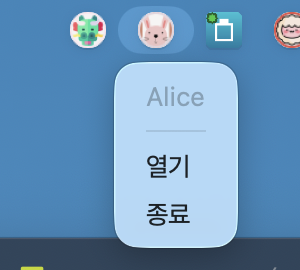
- Icon menu (Windows · Linux = right-click · macOS = click): Open · Settings… · Quit
- Open (or clicking the icon on Windows · Linux) brings the window back.
- Settings… (v0.3.0) opens the settings screen directly even while the window is minimized to the tray.
- A dot on the icon’s corner shows connection status (v0.3.0): green = connected to server · blue = direct LAN connection · orange = transferring.
| Setting | Behavior |
|---|---|
| Close button = minimize to tray | When on, clicking X minimizes to the tray instead of quitting (off by default). In that case, quit from the tray menu or Menu › Quit |
| Hide from taskbar/Dock while in tray | When minimized to the tray, the app disappears from the taskbar and Dock (on by default). When off, it stays minimized |
| Launch at system startup | Launches when you log in (on by default). Registered at the user level without administrator rights. The installer and portable builds each register separately, so they do not interfere with each other |
Notifications
- When the app is in the background, new messages and file requests are shown as OS desktop notifications. Clicking a notification opens that conversation.
- Notifications from contacts whose fingerprint has not been verified are shown silently.
- Show message content in notifications is off by default (to prevent exposure during screen sharing or recording). You can turn it on in Settings › Chat › Notifications.
- When there are unread messages, the main window title shows “N new messages”.
Settings
How to Open
- Main window Menu › Settings
- Shortcut ⌘/Ctrl+, (from any window)
- Tray (menu bar) icon menu › Settings…
The avatar at the far right of the toolbar is My profile, not settings. Settings apply immediately when changed and are saved automatically shortly after.
Screen Layout (Redesigned in v0.3.0)
- Group tree on the left — Six groups and the categories under them. Click a group to see the whole group, or a category to see only that category.
- Search at the top — If you enter several words, only items containing all of them remain (AND). It searches titles, descriptions, key names, and group names. Korean is matched even while characters are still being composed (typing just “ㅌ” finds “테마” [theme]). Press Enter to record a search term and ↑/↓ to recall previous ones.
- One card = one setting — Title and description, key name (with a copy button), the control and [Reset] (only when different from the default), and a “Default: …” label.
- Dimmed cards — Items that are tied to another setting and cannot be used right now. The card says what you need to turn on first.
- [Advanced settings] switch (at the bottom, off by default) — Rarely touched values such as input method fine-tuning and timing constants are shown only when this switch is on.
- The settings window’s position and size are kept for the next time you open it.
Key Items by Group
| Group › Category | Key items |
|---|---|
| General › System | Language (default = follow system language · 한국어/English/中文/日本語; other languages use English) · Theme (System/Light/Dark · default System) · Scale · Auto-start · 2 tray-related settings |
| General › Profile | Display name · photo · email · phone · bio · per-item visibility toggles · Identity key backup/restore |
| General › User | Multi-device identity (handle · pairing secret · rotate user key · my devices list) |
| Chat › Chat | Chat window mode (single/separate) · 24-hour time · date format · send delivery receipts · send read receipts |
| Chat › Notifications | Desktop notifications · show content in notifications · don’t receive announcements |
| Chat › Group | Settings related to inviting group members |
| Appearance › Appearance · Colors · Fonts · List | Accent color · bubble · background · text color for dark/light · font and size · list sorting · quick find · auto-hide scrollbars · tooltip delay |
| Files | Approval policy (manual/auto/block) · default auto-approval period · send/receive speed · send/receive size limits (receive default 512 MiB) · files per request (default 5) · response timeout (default 60 seconds) · auto-cancel when left paused (default 2 minutes) |
| Network › Network | Session port (default 47200) |
| Network › Server | Server mode (Unmanaged = LAN only / Managed) · address · port · [Test] · show me to server users · send files to via server / via internet contacts |
| Advanced › Advanced | Settings backup/restore/reset · status log (off by default) · network diagnostics · license information |
| Advanced › IME | Korean input method fine-tuning (visible only when the Advanced settings switch is on) |
Note The “System” item in the language and theme lists also shows the current OS value (e.g. “System (English)”, “System (Dark)”). If the theme is set to System, it follows the OS dark mode switch in real time.
Settings Backup · Restore · Reset
In Settings › Advanced, you can back up or restore all settings to a file (*.cfg). Reset returns filters and window sizes to their defaults as well, but preserves profile information.
Choosing and Saving Files
Since v0.3.0, every place where you choose a file or folder (identity key · settings · chat history backup/restore, profile photo, license file) uses the same dialog. It looks and behaves the same on all three OSes.
- Places on the left — Home · Desktop · Documents · Downloads · Drives · Recent folders
- Path bar at the top — ← → ↑ (parent) · Home · type a path directly (
~and environment variables allowed, Enter = go) - List in the middle — Click a column header = sort · double-click/Enter = open folder · confirm file · Backspace = parent folder · right-click = open · copy path · copy name · refresh
- Bottom — File name · type filter · show hidden files · [New folder]
- Esc · [Cancel] · closing the window = nothing changes. The next time you open it, it starts in the last folder.
| Task | Dialog | Format | Notes |
|---|---|---|---|
| Back up identity key | Save | *.key | Default name nexa-beep-identity-<fingerprint>.key. If a file with the same name exists, you must click again within 5 seconds to overwrite |
| Restore identity key | Open | *.key | — |
| Back up / restore settings | Save / Open | *.cfg | Backup works the same way as identity key backup |
| Profile photo | Open | png · jpg · gif · bmp · webp · ico | [Apply] after choosing |
| Back up chat history | Choose folder | — | Creates a nexa-beep-history-<fingerprint> folder inside the chosen folder |
| Restore chat history | Open (multiple) | *.seg | Select all in the backup folder with ⌘/Ctrl+A to restore the whole folder |
| License file | Open | *.license | See License |
License
Non-commercial use is free and requires no license file (status = “Free — non-commercial use”). For commercial use, obtain a license. Even without a license, no features are locked, and the app does not connect anywhere to check the license (it checks only the file and its signature).
Obtaining and Installing a License
- Open Help › License….
- Enter your name · email and click [Copy request code]. A one-line code is copied to the clipboard (this PC’s device code is included only as a hash).
- Send that code to the email address shown in the window.
- Save the
nexa-beep.licensefile you receive, then choose it with [Open license file…]. - If it passes verification, it is installed and the status strip at the top changes to something like “Licensed — pro”.
- Files for another PC, for another product, or that are damaged are not installed, and the reason is shown (the app keeps working for free).
- [Remove] = delete this user’s license file.
- In Settings › Advanced › License, you can see the status · license ID · file location · device code.
Terminal Commands
nexa-beep --license status                  # status
nexa-beep --license request Name email@address    # print request code
nexa-beep --license install nexa-beep.license
nexa-beep --license remove
nexa-beep --license path                    # file location
Exit codes: 0 = success · 1 = rejected/failed · 2 = usage error.
The license file is located in license/ in the data folder (portable = data/license/ next to the executable); if not found there, the device-wide location is checked — Windows %ProgramData%\nexa\nexa-beep · macOS /Library/Application Support/nexa/nexa-beep · Linux /etc/nexa/nexa-beep.
CLI Terminal
You can participate with just a terminal, without a window. It receives messages from all contacts, but you chat with the one person you connected to directly.
nexa-beep --chat-live MyNameCommands While Waiting
| Command | Action |
|---|---|
/peers (/list) | List discovered contacts (numbered) |
/connect <number> | Pick from the list and start a 1:1 conversation |
/connect <host[:port]> | Connect directly by IP (port omitted = 47200) |
/quit | Quit |
Commands During a Conversation
| Input | Action |
|---|---|
| A line of text | Send a message |
/send <files…> | Send files (several separated by spaces · up to 5 per request) |
/accept · /reject | Approve/reject all of a received file request |
/quit | End only the conversation and return to the list |
Connections initiated by the other side are accepted and kept, and their messages are shown in the form {fingerprint}(receive-only)>. To switch to a conversation, use /connect.
Note On Windows, if you run
--chat-livefromcmdor PowerShell, the app opens its own new console window. In Git Bash or a pipe, it runs in place.
Keyboard Shortcuts
The notation ⌘/Ctrl means ⌘ on macOS and Ctrl on Windows and Linux. Shortcuts are recognized by physical key position even with a Korean keyboard layout active.
Global
| Shortcut | Action |
|---|---|
| ⌘/Ctrl+, | Open settings |
| ⌘/Ctrl+K | Connect directly by address (or fingerprint) |
| ⌘/Ctrl+Y | Approve a received file request (when a request is shown) |
| ⌘/Ctrl+N | Reject a received file request (when a request is shown) |
List Screen
| Shortcut | Action |
|---|---|
| Enter · double-click | Open a conversation with the selected contact |
| ↑ / ↓ | Move selection |
| Typing characters | Quick find (jump by name) |
| ⌘/Ctrl+click | Select multiple people |
| ⌘/Ctrl+Space | Toggle selection |
| Han/Eng · Right Alt · Shift+Space | (Linux) Switch quick find between Korean and English |
Chat Window
| Shortcut | Action |
|---|---|
| Enter | Send |
| Shift+Enter | New line |
| Esc | Return to the list (single window mode) |
| ⌘/Ctrl+V | Paste — if the clipboard holds an image, it is sent as a PNG file |
Text Editing (All Input Fields)
| Shortcut | Action |
|---|---|
| ⌘/Ctrl+A | Select all |
| ⌘/Ctrl+C · X · V | Copy · cut · paste |
| ⌘/Ctrl+Backspace | Delete to the beginning of the line |
| Home · End | Beginning · end of line |
| Ctrl+← / → (Windows · Linux) · Option+← / → (macOS) | Move by word |
Settings Screen and File Dialog
| Shortcut | Action |
|---|---|
| Enter (settings search box) | Record search term |
| ↑ / ↓ (settings search box) | Recall previous search terms |
| Backspace (file dialog list) | Parent folder |
| Enter · double-click (file dialog) | Open folder · confirm file |
| ⌘/Ctrl+A (history restore dialog) | Select all files in the folder |
| Esc | Cancel |
Data and Privacy
Where Data Is Stored
| Installation type | Data folder |
|---|---|
| Portable | data/ next to the executable |
| Windows installer | data\ next to the install folder (%LOCALAPPDATA%\Programs\NexaBeep) — uses the folder next to the executable if it is writable |
| macOS (.app · Homebrew) | ~/Library/Application Support/nexa-beep |
| Linux (deb · rpm) | ~/.config/nexa-beep |
| When the above locations are not writable | .nexa-beep in the home folder |
Note The most accurate way to check the actual location is
nexa-beep --whoami. It shows the fingerprint, name, executable path, and data path together.
Stored Data and How It Is Protected
| Item | Protection |
|---|---|
Settings (settings.cfg) | Plain text (non-sensitive values only) |
Identity key (identity.key) | Plain text (it is the source material for encrypting other files, so it cannot wrap itself) · readable by owner only |
| User key · pairing secret (multi-device identity) | Encrypted |
| Trust pins | Encrypted |
| Chat history (1:1 · group) · offline queue | Encrypted · deleting a conversation = discarding its data key (unrecoverable) |
Quarantined received files (.beepq) | Encrypted |
| Profile contact details · profile image cache | Encrypted |
| Status log (optional · off by default) | Plain text (only when turned on) |
- Since v0.2.15, secret files are created readable and writable by the owner only (Unix 0600).
- The app has no analytics, telemetry, advertising, or tracking features, and no account sign-up.
What Goes Out over the Network
- LAN discovery signals (not encrypted): device public key · display name · session port · profile visibility flag. Email, phone, real name, and messages are not included.
- Chat sessions: All messages, files, profiles, and receipts travel only over Noise_XX encrypted sessions.
- Relay server: Communicates only when you turn it on yourself. What information the server receives and how it is handled is described in the Privacy Policy.
- When multi-device identity is on, your devices exchange the user key, device list, conversation copies, catch-up records, and read status with each other inside encrypted sessions (v0.4.0–v0.5.0).
Backing Up Your Identity Key — Before Changing Devices or Formatting
identity.key is your identity. If you lose this file, after reinstalling you will appear to contacts as a different person, and you will not be able to open existing pins or quarantined files.
- Click Settings › General › Profile › Identity key backup.
- Save it to a safe location in the save dialog.
- On the new device, load it with Identity key restore in the same place.
Caution Chat history does not follow the identity key. To move history, use history backup/restore in Conversations separately. With multi-device identity, a device that was off receives recent conversations (200 lines per conversation) from sibling devices, but this is not a way to migrate the full history.
Caution Placing the data folder inside a synced folder such as OneDrive can cause conflicts or deleted conversations reappearing. If the app detects this, it only shows a warning.
Deleting Data
- One conversation: delete it in Conversations (discards the data key)
- One contact: right-click in the list → Remove from list
- Everything: quit the app and delete the data folder
Note Due to SSD characteristics or backup copies you made, deleted bytes may physically remain. Because the data key is discarded they become unreadable, but physical deletion is not guaranteed.
For details, see the Privacy Policy and Terms of Service.
Troubleshooting
| Symptom | What to check |
|---|---|
| A contact is not in the list | Whether you are on the same LAN (guest Wi-Fi and VLANs block multicast) → Rediscover on the toolbar → whether the filter bar’s On is showing only “Online” → add the IP directly with ⌘/Ctrl+K (same network) or use the relay server (different network) |
| Others cannot see me | Whether the firewall blocks UDP 47100 (discovery) · TCP 47200 (session) · check Listening :port in the status bar · whether two instances on one PC have overlapping ports (--port) |
| Discovery does not work on corporate Wi-Fi | On networks with client isolation or IGMP snooping, automatic discovery may be blocked entirely. Use direct connection by address |
A file is stuck at Awaiting approval | Waiting for the contact to respond in the approval window — automatically canceled after 60 seconds. Contacts you have not exchanged messages with get manual approval even with auto-approval (lifted after one message exchange) |
| Files do not go to via server / via internet contacts | Whether “Send files to via server / via internet contacts” in Settings › Server is off (off by default) |
| Server [Test] fails | Internet connection · check address/port · whether a corporate firewall blocks 47300 (TCP/UDP) |
| Server key mismatch warning | Ask the server operator whether the key was changed. Compare the official server pin with the value in How to Connect above. If in doubt, do not connect |
| Images are not sent with ⌘/Ctrl+V | Check that the clipboard holds an image, not text (text is pasted as characters). On Linux Wayland, the window must have keyboard focus |
| After restarting, contacts do not recognize me | identity.key may have changed (deleted, or it was in a temporary folder). Check whether the fingerprint in --whoami is the same as before and restore from a backup |
| Only initials are shown instead of photos | Check that nbeep-imgdec is in the same folder as the executable |
| The purple “My device” badge disappears | v0.2.17 fixed a problem where the badge disappeared on reconnection after being on for a long time. Update to the latest version |
Exits immediately on launch on Windows (0xC0000135) | v0.2.14 and earlier required the VC++ runtime. Update to v0.2.16 or later |
| Does not run on Ubuntu 22.04 · Debian 12 | This is the glibc declaration problem of .deb packages v0.2.17 and earlier. Install v0.3.0 or later |
| On Linux, settings and chat windows hide behind the main window | v0.3.1 fixed the window focus problem on Wayland |
| On Linux, clicking “Open” in the tray does not show the window | GNOME requires the AppIndicator extension. On Wayland, depending on the desktop, the window may not be brought to the front and only the Dock may be highlighted |
| On macOS, the app closes immediately | Quarantine flag problem — install with Homebrew Cask or run xattr -dr com.apple.quarantine "/Applications/Nexa Beep.app" |
| Security software shows a warning | False positives can occur due to a combination of an unsigned executable, auto-start, listening on a fixed port, etc. Verify the file with the release’s SHA256SUMS.txt |
Version History
Version Timeline Summary
| Period | Version | Highlights |
|---|---|---|
| 2026-08-11 – 08-20 | v0.1.x | First release · automatic LAN discovery and encrypted chat · safe file transfer · profiles · notifications · large transfers and resume |
| 2026-08-20 – 08-30 | v0.2.0 – v0.2.14 | Auto-start · CLI terminal · offline queue · relay server (beepd) and cross-network connections · group files · filter bar · Linux real-device polish · in-house clipboard implementation |
| 2026-09-07 – 09-26 | v0.2.15 – v0.2.17 | Multi-device identity (linking your own devices) · removed Windows runtime dependency · stabilized my-device connections |
| 2026-10-09 | v0.3.0 · v0.3.1 | Complete settings screen redesign · license · new file dialog · Linux rpm · APT/DNF repositories · my devices list |
| 2026-10-10 | v0.4.0 | Improved perceived chat window speed · continuing conversations across my devices (sent copies · collapsing contact devices) |
| 2026-10-10 | v0.5.0 | Catch-up for devices that were off · read sync across devices |
v0.5.0 — 2026-10-10
Added
- Catch-up — While one of your devices linked with the same handle and secret is off, conversations exchanged on other devices come in automatically from sibling devices when you turn it on (latest 200 lines per conversation · 1 MiB per connection). Lines sent by contacts and lines you sent from other devices are placed in chronological order. File contents are not caught up.
- Read sync — A conversation read on one device also clears the unread badge on other devices (including messages received while the chat window was open).
Improved
- Sent message numbers now continue across restarts so the same line appears only once after a restart. The history file format has been extended (if you roll back to a previous version, only lines after the new format are hidden on screen; the history itself remains).
- History with contacts you have never connected to directly (received from other devices) is also restored to the list and conversations after a restart.
Changed
- Distribution channels: GitHub Releases · Homebrew · APT/DNF. Chocolatey and winget submissions for this version will follow. No change to the relay server (beepd-v0.2.6).
v0.4.0 — 2026-10-10
Improved
- The chat window is lighter (macOS) — Fixed sluggish scrolling, context menus, and mouse movement over menus. Frame time dropped from about 29 ms to 8 ms, and idle memory is within budget (about 25 MB). Adjusted the scroll amount per mouse wheel notch for high-resolution displays.
Added
- Continuing conversations across my devices — Messages sent from your other devices also appear in this device’s chat window (sent copies), and a contact’s multiple devices are collapsed into one row · one conversation. Messages are delivered to all of the contact’s devices that are on.
- Development debug builds show (Debug) in the window title (installed builds are unchanged).
Fixed
- Removed the “Via internet — files blocked until fingerprint verified” notice that appeared in conversations with my own devices, and the same notice that repeated on every reconnection now appears only once.
- Internal identifiers such as
PeerId(…)were shown above received chat lines (now shown as the device name). - The my devices list and license windows opened at half height on macOS Retina, causing buttons to overlap.
v0.3.1 — 2026-10-09
Added
- My devices list — Settings › User › My devices [Open…]. View name · short fingerprint · status · last seen in a table, and remove a lost device by clicking [Revoke] twice within 5 seconds.
- Korean search in quick find in the Linux list (switch with Han/Eng key · Right Alt · Shift+Space).
- Linux package repository
pkg.sosomlab.com—sudo apt install nexa-beep/sudo dnf install nexa-beep.
Fixed
- On Linux Wayland, Tray › Settings… and chat windows were stuck behind the main window, appearing frozen.
- The theme item in settings now also shows the current OS value, like “System (Light)”.
- The example description in the connect-by-address window was cut off · toolbar tooltip descriptions did not change when the language was changed.
v0.3.0 — 2026-10-09
Added
- Complete settings screen redesign — group tree · search (AND · search while composing Korean · search history) · per-item cards · [Advanced settings] switch · window position and size remembered.
- New way to open settings: tray (menu bar) icon menu › Settings….
- License — Help › License…, CLI
--license. No feature restrictions · no network connection for checking. - New file dialog — The 9 places where you choose files use the same dialog (identical on all 3 OSes). Identity key and settings backups use the save dialog.
- Connection status dot on the tray icon (connected to server · direct LAN connection · transferring).
- Linux
.rpminstaller.
Improved
- Language default = follow system language. The “System” item for language and theme shows the current OS value.
- List quick find also matches display names, ↑ wraps around from the end, and it can be turned off and its hold time adjusted.
- Korean characters being composed are visible in the settings search box · the notification position setting is now a dropdown with preview.
Fixed
- Linux
.debdid not run on Ubuntu 22.04 · Debian 12 (glibc minimum version declaration).
v0.2.17 — 2026-09-26
Fixed
- After being on for a long time (resuming from sleep · brief network outage · server reconnection), the “My device” connection was lost and the purple badge disappeared. The my-device relationship is now re-established on reconnection via server as well, and the badge is kept even if the session drops briefly (trust decisions such as skipping approval apply only to live connections).
- An asymmetry where only one side remained “My device” · when one of three devices missed the check, it was never looked up again.
v0.2.16 — 2026-09-17
Fixed
- The Windows executable now runs without the Visual C++ Redistributable. Previous versions failed immediately with error
0xC0000135on PCs without that runtime. The relay server was also redistributed with the same fix as beepd-v0.2.6. No functional changes.
v0.2.15 — 2026-09-07
Added
- Multi-device identity — In Settings › User, your PCs with the same handle + pairing secret recognize each other as “My device” without approval or fingerprint verification (purple badge). Automatic user key replication · user key rotation for lost devices.
Fixed
- Contacts with history disappeared from the list when they could not connect.
- Symbols missing from the font (✓ ⚠ →) were shown as □ (now substituted with the OS symbol font).
- Pairing registration did not work when two PCs met through the relay.
Security
- Secret files such as the identity key, pins, history, profile, and server pin are now readable and writable by the owner only (0600).
v0.2.10 – v0.2.14 — 2026-08-29 – 08-30
- v0.2.14 (08-30) — In-house clipboard implementation on all 3 OSes. ⌘/Ctrl+V image paste works without external tools (including Linux Wayland · X11).
- v0.2.13 (08-29) — Fixed the installer and other builds removing each other’s auto-start registrations (registrations are now separated by executable location).
- v0.2.12 (08-29) — On Linux GNOME, tray “Open” now actually brings the window to the front.
- v0.2.11 (08-29) — Theme follows OS dark mode in real time (default = System) · Linux Dock icon · tray Wayland support · fixed slow quitting.
- v0.2.10 (08-29) — Fixed Linux
.deblaunching in demo mode instead of the real network when started from the app menu (v0.2.2–v0.2.9).
v0.2.6 – v0.2.9 — 2026-08-23 – 08-24
- v0.2.9 (08-24) — Fixed data possibly being lost when upgrading the macOS
.appor Homebrew (data is kept in the user folder · existing data migrated once). - v0.2.8 (08-24) — If the auto-start registration is removed by the OS, the app no longer re-registers it but turns the setting off and notifies you.
- v0.2.7 (08-24) — Unified file sending and receiving in group windows (send counter · combined receive banner · auto-cancel).
- v0.2.6 (08-23) — List filter bar (Via · On · Who) · immediate display of public profiles of public server users · remote file policy overhaul (sending to via server / via internet contacts is allowed through settings; receiving is decided in the approval window) · server connection only on [Test] success · route badge in chat header · immediate LAN profile sync · minimum window size · fingerprint copy button.
v0.2.3 – v0.2.5 — 2026-08-22
- v0.2.5 — Automatic server user list (“Show me to server users”) · profile fingerprint copy button. Server beepd-v0.2.5 released at the same time.
- v0.2.4 — Built-in official default relay server (
beepd.sosomlab.com) · server settings screen cleanup (address input · connection test button · verification status display). - v0.2.3 — Relay server connection launched (server key pin · automatic reconnection · connect by fingerprint · CLI
--server). First server beepd-v0.2.3.
v0.2.0 – v0.2.2 — 2026-08-20 – 08-21
- v0.2.2 (08-21) — Per-route remote policy (via internet blocks files until fingerprint verified) · expanded zip structure inspection (zip64 · content listing) · deleting a conversation = discarding its key · real AMSI scanning on Windows. First winget and Chocolatey submissions.
- v0.2.1 (08-21) — 1:1 offline queue (persists across restarts · automatic delivery) · clipboard image sending · message priority and announcements · expanded CLI terminal (
/peers·/connect· per-request approval · multiple/send). - v0.2.0 (08-20) — Launch at system startup (3 OSes · on by default) · fixed a black console window remaining on Windows · fixed CLI input getting mixed up in
cmd/PowerShell.
v0.1.6 – v0.1.8 — 2026-08-13 – 08-20
- v0.1.8 (08-20) — Large streaming transfers · send/receive size limits (receive default 512 MiB) · resume · in-bubble transfer controls (⏸▶✕) · per-request approval · Conversations · persistent group history · fingerprint-based verification (
/fingerprint·/verify) · encryption of quarantined files, contacts, and profile cache. - v0.1.7 (08-15) — OS desktop notifications (click = open that conversation) · Windows tray residency · trust badge overhaul (dual indication by color + shape) ·
/commands in the chat window. - v0.1.6 (08-13) — Unread message badge · no longer steals the window when a contact connects · automatic reconnection · dropped connection detection (about 22 seconds) · manually registered contacts kept in the list · text editing basics ·
--portoption.
v0.1.0 – v0.1.5 — 2026-08-11 – 08-13
- v0.1.5 (08-13) — Default session port 47200 (port can be omitted when entering an address) · allowed previews of large phone photos.
- v0.1.4 (08-12) — Persistent settings · persistent identity and trust pins with identity key backup/restore · real-name sanitization of display names · profiles (photo · name · email · phone · per-item visibility) · isolated image decoding.
- v0.1.3 (08-11) — Fixed no response to double-click on Windows · file transfer completion confirmed by the recipient · direct connect-by-address window (⌘/Ctrl+K).
- v0.1.2 (08-11) — Fixed no response to double-click on the macOS app · clipboard (macOS/Linux) · context menus.
- v0.1.0 / v0.1.1 (08-11) — First release. Windows x64/ARM64 · macOS x64/ARM64 · Linux x64 · installer and portable · Homebrew tap.
Relay Server (nexa-beepd) Versions
| Version | Date | Description |
|---|---|---|
| beepd-v0.2.6 | 2026-09-17 | Removed the VC++ runtime dependency from the Windows binary (static linking). Current official server version |
| beepd-v0.2.5 | 2026-08-22 | Automatic server user list (roster) support · first publication to package managers (brew · winget · Chocolatey) |
| beepd-v0.2.3 | 2026-08-22 | First server release — rendezvous · UDP hole punching · relay fallback · Linux static binary |
All release assets and checksums are available on GitHub Releases.
Known Limitations
Identity · Trust
- A man-in-the-middle attack at the moment of first contact cannot, in principle, be detected. If you need certainty, compare fingerprints over another channel (
/fingerprint→ compare →/verify). - Display names and profiles are the contact’s claims. A new key with the same name is treated as a new person and is revealed only by the name conflict mark.
- Because the fixed public key is periodically included in discovery signals, an observer on the same LAN can identify a device over a long period.
- Due to the nature of anonymous zero-configuration, blocking only raises the cost of circumvention and cannot prevent it completely.
History · Storage
- Chat history exists only on each PC and does not automatically follow you when you change devices (use Conversations backup/restore or multi-device catch-up — catch-up is limited to the latest 200 lines per conversation · text only).
- The storage encryption key is derived from
identity.key. It offers no protection against someone logged in to the same OS account or against leakage of the key file. - Deletion does not guarantee physical erasure (it only makes data unreadable by discarding the data key).
Delivery · Network
- The offline queue delivers only while your PC is on. The server does not hold messages for you.
- Discovery may fail depending on the network environment (client isolation · IGMP snooping). Direct connection by address is an alternative, but some networks still cannot be reached.
- Content is encrypted, but packet sizes and timing patterns can be observed.
- When you use the relay, the server learns “who connected with whom and when” and your public IP.
Files
- Antivirus scanning (AMSI) works only on Windows. On macOS and Linux, files are shown as “Not scanned”.
- Archive inspection examines the structure of zip (including zip64) only. Encrypted zips, nested archives, and other formats are “Undetermined”.
- Group files are sent separately to each member, so traffic grows with the number of members.
Platforms
- Because the app is not yet code-signed or notarized, SmartScreen and Gatekeeper warnings appear. On macOS, installation with Homebrew Cask is recommended.
- Some security software may raise false positives due to a combination of an unsigned executable, auto-start enabled by default, listening on a fixed port, etc.
- Linux Wayland: There are restrictions on the app hiding its own window or bringing it to the front, so depending on the desktop, tray “Open” and notification clicks may only highlight the Dock. In some environments the clipboard is usable only when the window has keyboard focus (no pasting while in the tray).
- The relay server for macOS (
nexa-beepd) is Apple Silicon only. - Korean input has been refined based on real-world testing, but problems may occur with new OS and input method combinations.
- The screenshots in this guide are based on v0.2.14, and screens that changed later (especially settings) are described in text only.