Overview
Nexa Shortcut is a collection of ultra-lightweight keyboard shortcut utilities for Windows, built on the principle of “one feature, as light as possible.” Each tool is written using only the pure Win32 API — no GUI framework and no C runtime (CRT) — to keep the executable size and memory usage to a minimum.
The only tool currently available is nShiftSpace (Nexa ShiftSpace).
| Item | Details |
|---|---|
| What it does | When you press Shift+Space, it presses the Korean/English (Hangul) key for you |
| File size | 4,608 bytes (about 4.5 KB) |
| How it runs | Stays resident without a window, as a tray icon (a ‘가·A’ pixel-art icon) |
| Settings | None — no settings file, no settings screen, and nothing written to the registry |
| License | MIT — free for anyone to use |
It is meant for keyboards without a Korean/English key, such as international keyboards and some laptops, or for anyone who finds the Korean/English key’s position awkward.
Product page: /apps/nexa-shortcut
System Requirements
| Item | Details |
|---|---|
| Operating system | Windows 10 / 11 |
| Architecture | Separate x64 (64-bit) and x86 (32-bit) builds |
| Additional installs | None — no .NET or Visual C++ Redistributable required |
| System libraries used | kernel32 · user32 · shell32 (included with Windows) |
| For winget | Windows 11, or Windows 10 1809 or later |
Installation and Removal
nShiftSpace runs as a single exe with no installer. Choose whichever of the three methods below suits you.
| Method | Required privileges | Best for |
|---|---|---|
| winget | Standard user | Most Windows 10/11 users |
| Chocolatey | Administrator | Those who already use Chocolatey |
| Direct zip download | Standard user | Those who want to choose the install location themselves |
After installing, set up auto-start once. No installation method registers the program as a startup program automatically.
winget
winget is included by default in Windows 11 and Windows 10 1809 or later. If you don’t have it, install App Installer from the Microsoft Store.
winget install SosomLab.nShiftSpace     # Install
nshiftspace                             # Run
winget upgrade SosomLab.nShiftSpace     # Upgrade
winget uninstall SosomLab.nShiftSpace # Uninstall- It is installed as a portable package, and x64 or x86 is selected automatically.
- Right after installing, open a new terminal window so the PATH change takes effect, then run
nshiftspace.
| Item | Path |
|---|---|
| Command alias | %LOCALAPPDATA%\Microsoft\WinGet\Links\nshiftspace.exe |
| Actual exe | Under %LOCALAPPDATA%\Microsoft\WinGet\Packages\SosomLab.nShiftSpace_Microsoft.Winget.Source_8wekyb3d8bbwe\ |
Caution winget does not close a running program for you. Exit it from the tray icon before upgrading or uninstalling. If it is still running, the file is locked and the operation fails.
Chocolatey
If you don’t have Chocolatey, first install it from an administrator PowerShell (official instructions).
Set-ExecutionPolicy Bypass -Scope Process -Force
[System.Net.ServicePointManager]::SecurityProtocol = 3072
iex ((New-Object System.Net.WebClient).DownloadString('https://community.chocolatey.org/install.ps1'))
Then, in an administrator PowerShell:
choco install nshiftspace -y     # Install
nShiftSpace-x64                  # Run (nShiftSpace-x86 on a 32-bit OS)
choco upgrade nshiftspace -y     # Upgrade
choco uninstall nshiftspace -y # Uninstall- Only the one exe matching your OS architecture is installed in
%ChocolateyInstall%\lib\nshiftspace\tools\, and a command of the same name is added to the PATH. The default value of%ChocolateyInstall%isC:\ProgramData\chocolatey. - Chocolatey automatically closes a running nShiftSpace before upgrading or uninstalling.
Direct zip download
- Download
nShiftSpace-x64.zip(64-bit) ornShiftSpace-x86.zip(32-bit) from GitHub Releases. - Extract it to a folder of your choice (e.g.
C:\Tools\nShiftSpace\). - Double-click
nShiftSpace-x64.exe(or-x86.exe), and the icon appears in the tray.
Because you choose the install location yourself, the path doesn’t change when you upgrade. If Windows SmartScreen shows a warning when you run the downloaded exe, you can continue with More info → Run anyway.
Channel comparison
| Task | winget | Chocolatey |
|---|---|---|
| Prerequisites | Usually included | Chocolatey must be installed |
| Privileges | Standard user | Administrator PowerShell |
| Install | winget install SosomLab.nShiftSpace | choco install nshiftspace -y |
| Run | nshiftspace | nShiftSpace-x64 |
| Upgrade | winget upgrade SosomLab.nShiftSpace | choco upgrade nshiftspace -y |
| Uninstall | winget uninstall SosomLab.nShiftSpace | choco uninstall nshiftspace -y |
| Auto-close if running | No — you must exit it yourself | Yes |
Removal
- winget · Chocolatey: Use the uninstall command in the table above (for winget, exit from the tray first).
- zip: Exit from the tray, then delete the exe file. Nothing is written to the registry, so nothing is left behind.
- Whichever method you used, if you registered auto-start, remove it as well (see Disabling auto-start).
Getting Started
- Run it according to your installation method.
| Installation method | How to run |
|---|---|
| winget | nshiftspace |
| Chocolatey | nShiftSpace-x64 (nShiftSpace-x86 on a 32-bit OS) |
| zip | Double-click the exe |
- No window appears. Only a small ‘가·A’ icon appears in the tray (the notification area on the right side of the taskbar).
- If you don’t see the icon, click ∧ (Show hidden icons) on the taskbar. To keep it always visible, drag the icon from there onto the taskbar.
- Place the cursor in any input field and press Shift+Space. If the input switches between Korean and English, it’s working.
- To have it start automatically every time you sign in, set up auto-start.
Tray Menu
Click the tray icon (left or right click) to open the menu.
| Menu | Action |
|---|---|
| Exit (종료) | Exits nShiftSpace |
Hovering over the icon shows the tooltip “nShiftSpace: Shift+Space 한/영 전환” (Shift+Space Korean/English toggle). That’s the whole menu — the program is designed to have nothing to configure.
How It Works
Shift+Space pressed  →  Windows intercepts it (RegisterHotKey)
                     →  sends a Korean/English key (VK_HANGUL) press instead
→ the Windows input method (IME) toggles Korean/English- It uses Windows’ hotkey registration feature (
RegisterHotKey), not a keyboard hook. The OS notifies it only about Shift+Space, so there is no need to inspect every keystroke, and CPU usage while idle is effectively zero. Since it doesn’t snoop on keystrokes, it also avoids the problem of antivirus software flagging hook-based programs. - The actual Korean/English switch is done by the Windows input method. nShiftSpace only presses the Korean/English key for you.
- Duplicate-launch prevention — If it is already running, a second launch exits immediately.
- Automatic tray icon recovery — Even if Explorer (
explorer.exe) restarts, the icon comes back on its own.
Keyboard Shortcuts
| Key | Action |
|---|---|
Shift+Space | Toggle Korean/English (same as pressing the Korean/English key) |
- The shortcut is fixed to Shift+Space. This is a deliberate choice to stay at 4.5 KB, so it cannot be changed.
- While nShiftSpace is running, Windows intercepts Shift+Space and passes it to nShiftSpace. If you want to use the Shift+Space combination in another program, exit nShiftSpace temporarily.
Settings
nShiftSpace has no settings.
- There is no settings file and no settings screen.
- Nothing is written to the registry (except when you register auto-start yourself).
- The ability to change shortcuts is planned for the upcoming nexa-mapper (see Known Limitations).
Auto-start
nShiftSpace is a resident program that only does its job if it starts automatically when you sign in, but neither winget nor Chocolatey registers it as a startup program. You only need to follow the steps below once.
Step 1 — Choose the exe path to point to
Caution If you installed with winget, do not point to the actual exe under
WinGet\Packages\.... That folder is recreated during upgrades, which breaks the shortcut. Point to the alias pathWinGet\Links\nshiftspace.exe, which does not change.
| Installation method | Path to point to |
|---|---|
| winget | %LOCALAPPDATA%\Microsoft\WinGet\Links\nshiftspace.exe |
| Chocolatey | %ChocolateyInstall%\lib\nshiftspace\tools\nShiftSpace-x64.exe (-x86 on a 32-bit OS) |
| zip | The exe in the folder you extracted to |
In PowerShell, store the path in a variable and check that it exists.
# winget
$exe = "$env:LOCALAPPDATA\Microsoft\WinGet\Links\nshiftspace.exe"
# For Chocolatey
# $exe = "$env:ChocolateyInstall\lib\nshiftspace\tools\nShiftSpace-x64.exe"
# For zip
# $exe = "C:\Tools\nShiftSpace\nShiftSpace-x64.exe"

Test-Path $exe
If it returns True, go on to Step 2.
If winget returns False — winget creates the alias as a symbolic link, which it may not be able to do if Windows Developer Mode is turned off.
- Turn on Settings → Privacy & security → For developers → Developer Mode.
- Reinstall.
winget uninstall SosomLab.nShiftSpace
winget install  SosomLab.nShiftSpace
Test-Path "$env:LOCALAPPDATA\Microsoft\WinGet\Links\nshiftspace.exe"
If you can’t turn on Developer Mode, you can find and use the actual exe path, but you may then need to re-register after each upgrade. If you want a fixed path, a zip or Chocolatey installation is recommended.
$exe = (Get-ChildItem "$env:LOCALAPPDATA\Microsoft\WinGet\Packages\SosomLab.nShiftSpace_*" `
        -Recurse -Filter "nShiftSpace-*.exe" | Select-Object -First 1).FullName
$exe
Step 2 — Choose a registration method
| Situation | Recommendation |
|---|---|
| You just want it to start when you sign in | Method A — Startup folder |
| You want to keep the Startup folder clean | Method B — Registry Run key |
| You need Korean/English switching even over Task Manager or an administrator terminal | Method C — Task Scheduler |
Use only one of the three. Run the commands in the same PowerShell window where you set $exe in Step 1.
Method A — Shortcut in the Startup folder
$startup = [Environment]::GetFolderPath('Startup')
$lnk     = Join-Path $startup 'nShiftSpace.lnk'

$ws = New-Object -ComObject WScript.Shell
$sc = $ws.CreateShortcut($lnk)
$sc.TargetPath       = $exe
$sc.WorkingDirectory = Split-Path $exe
$sc.Description      = 'nShiftSpace - Shift+Space Korean/English toggle'
$sc.Save()

Test-Path $lnk   # True means registration is complete
To apply it to all users, change Startup to CommonStartup and run it in an administrator PowerShell.
Using the mouse
- Type
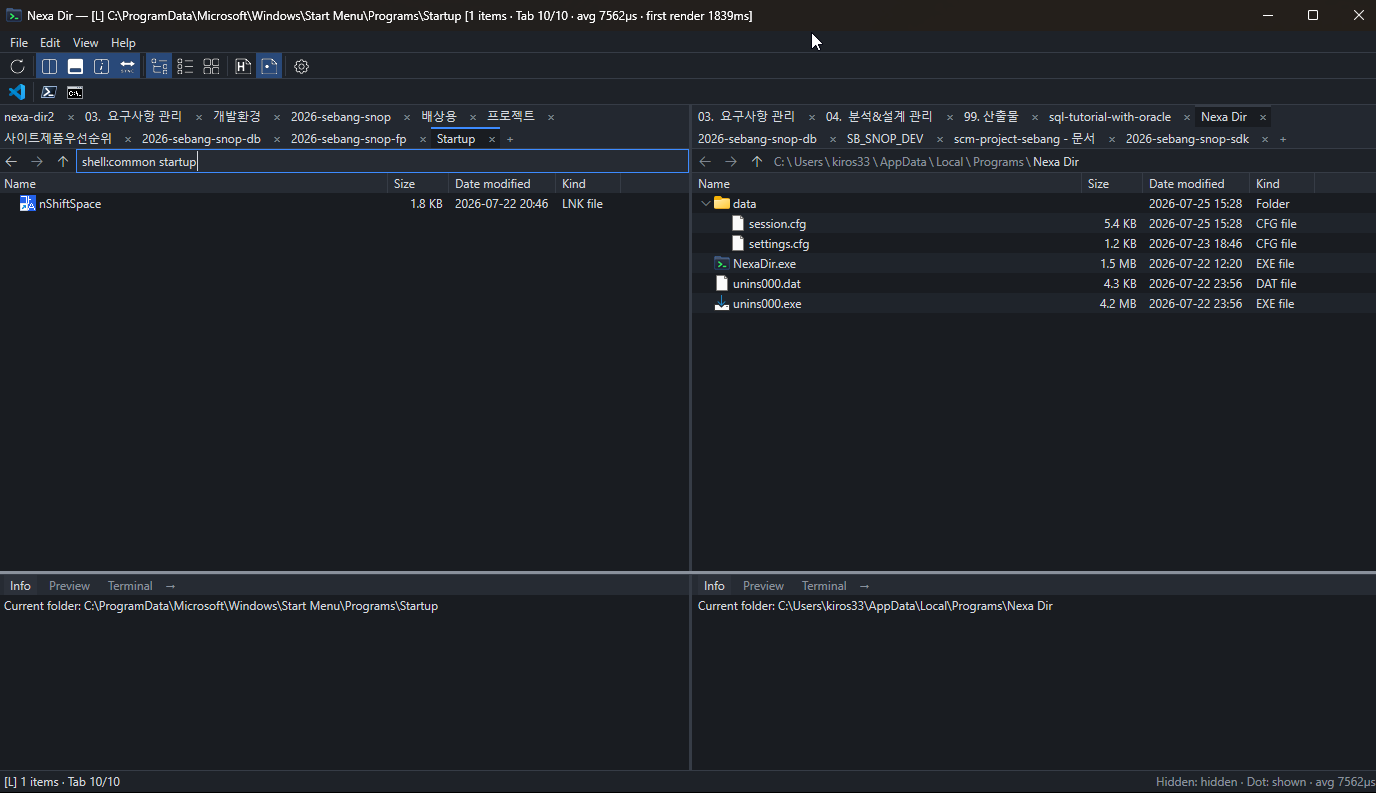
shell:startupinWin+R(Run) or in the file manager’s address bar to open the Startup folder. For all users, useshell:common startup(requires administrator privileges). - Drag the exe from Step 1 with the right mouse button into that folder and choose Create shortcuts here. Be careful: dragging with the left button copies or moves the file.
A dual-pane file manager makes this even easier. Open shell:common startup (or shell:startup) in the address bar of one pane and the folder containing the exe in the other, then create a shortcut to the exe and move it to the Startup folder side. SosomLab’s Nexa Dir supports dual panes and entering shell: paths in the address bar.
Method B — Registry Run key
New-ItemProperty -Path 'HKCU:\Software\Microsoft\Windows\CurrentVersion\Run' `
  -Name 'nShiftSpace' -Value "`"$exe`"" -PropertyType String -Force
The path may contain spaces, so wrapping it in double quotes is important.
Method C — Task Scheduler (to use it in elevated windows too)
When a window running with administrator privileges has focus, such as Task Manager or an administrator terminal, the shortcut of an nShiftSpace running with standard privileges is not delivered to that window. This is due to a Windows security policy (UIPI) and applies to every program that works the same way.
To solve this, nShiftSpace itself must run with elevated privileges, which Methods A and B cannot do — only Task Scheduler can. Run the following in an administrator PowerShell.
$exe = "$env:LOCALAPPDATA\Microsoft\WinGet\Links\nshiftspace.exe"   # The path chosen in Step 1

$action    = New-ScheduledTaskAction  -Execute $exe
$trigger   = New-ScheduledTaskTrigger -AtLogOn -User $env:USERNAME
$principal = New-ScheduledTaskPrincipal -UserId $env:USERNAME `
               -LogonType Interactive -RunLevel Highest
$settings  = New-ScheduledTaskSettingsSet -AllowStartIfOnBatteries `
               -DontStopIfGoingOnBatteries -ExecutionTimeLimit 0

Register-ScheduledTask -TaskName 'nShiftSpace' -Action $action -Trigger $trigger `
-Principal $principal -Settings $settings -Force| Option | Reason |
|---|---|
-RunLevel Highest | The key part. Makes Shift+Space work even over elevated windows |
-ExecutionTimeLimit 0 | No time limit. With the default (3 days), it would be terminated while running in the background |
-AllowStartIfOnBatteries | Runs even when a laptop is on battery power |
-LogonType Interactive | Runs in the signed-in session — required for the tray icon to be visible |
- It runs with elevated privileges, but no UAC prompt appears; it starts quietly when you sign in.
- It may fail on PCs where you are not an administrator or where organizational policy blocks it. In that case, use Method A.
Step 3 — Verify
Sign out and back in (or restart) and check that the ‘가·A’ icon is in the tray. To check right away:
Start-Process $exe
Get-Process nShiftSpace-x64, nshiftspace -ErrorAction SilentlyContinue
If Shift+Space switches between Korean and English, it’s working. Duplicate launches are prevented, so it’s fine if it is already running.
Disabling auto-start
Remove it the same way you registered it.
# Method A — Delete the shortcut
Remove-Item (Join-Path ([Environment]::GetFolderPath('Startup')) 'nShiftSpace.lnk')

# Method B — Delete the Run key value
Remove-ItemProperty -Path 'HKCU:\Software\Microsoft\Windows\CurrentVersion\Run' -Name 'nShiftSpace'

# Method C — Delete the scheduled task (administrator PowerShell)
Unregister-ScheduledTask -TaskName 'nShiftSpace' -Confirm:$false
To check on screen, look at the Task Manager → Startup (Startup apps) tab for Methods A and B, and at Task Scheduler for Method C.
When upgrading
| Channel | What to do |
|---|---|
| Chocolatey | Nothing — it closes the program for you. Just run choco upgrade nshiftspace -y |
| winget | Tray icon → Exit, then winget upgrade SosomLab.nShiftSpace |
If you registered the Links alias path, auto-start stays in place after upgrading. If you used another path, use Test-Path from Step 1 to check that the path is still valid.
Data and Privacy
- nShiftSpace does not store or transmit any data. There is no settings file and no log, and it writes nothing to the registry.
- It does not monitor keystrokes. It registers only Shift+Space with Windows and receives only a notification that the combination was pressed.
- If you register auto-start, only that shortcut, Run value, or scheduled task remains, and you can remove it via Disabling auto-start.
Troubleshooting
Installation
| Symptom | Cause and fix |
|---|---|
winget install can’t find the package | Source information is out of date — run winget source update and try again |
The winget command doesn’t exist | Install App Installer from the Microsoft Store (Windows 10 earlier than 1809 is not supported) |
choco install says “package not found” | Check with choco search nshiftspace. If publication is delayed, try again later |
choco says “Access is denied” | Run it in an administrator PowerShell |
| Upgrade or uninstall fails because the file is locked | Tray icon → Exit, then try again (especially with winget) |
Running
| Symptom | Cause and fix |
|---|---|
| Nothing happens when I run it | That’s normal. It’s a tray program with no window. Click ∧ on the taskbar to find the icon |
| I ran it twice but only one instance started | That’s normal — duplicate launches are prevented |
The nshiftspace command isn’t found (winget) | Try again in a new terminal window. If it still fails, the alias may be missing → see Step 1 |
| A “Shift+Space 단축키 등록에 실패했습니다.” (Failed to register the Shift+Space shortcut) dialog appears and it exits | Another program registered Shift+Space first → see “It doesn’t work anywhere” below |
| Antivirus blocks it | As a tiny exe built without the CRT, it occasionally triggers false positives. Compare the file and its SHA256 with those in Releases, then add an exception |
When the shortcut doesn’t work
It doesn’t work only in certain windows → an administrator privilege issue. If it fails only over Task Manager, an administrator terminal, or some installers, that’s expected behavior (UIPI). Run nShiftSpace with administrator privileges, or register auto-start with Method C.
It doesn’t work anywhere → the shortcut is already taken. Another program may have registered Shift+Space first; whichever registers first wins. Exit other Korean/English switching utilities (including the original jwShiftSpaceKey), macro programs, game overlays, and some input method tools, then run nShiftSpace again.
Korean/English switches, but input behaves oddly → input method settings. The actual switching is done by the Windows input method. Check the Korean/English toggle key setting in Settings → Time & language → Language & region → Korean → Language options → Microsoft IME → Options.
The tray icon is there, but nothing happens. Exit and run it again; if that doesn’t help, restart your PC and try again.
Auto-start
| Symptom | Cause and fix |
|---|---|
| Auto-start stops working after an upgrade | You pointed to the actual path under Packages instead of the Links alias → start again from Step 1 |
| The scheduled task (Method C) doesn’t run | Check the Last Run Result of the nShiftSpace task in Task Scheduler. If you left out -ExecutionTimeLimit 0, it is terminated after 3 days |
| A black window briefly appears when signing in | The path wasn’t wrapped in double quotes in Method B → register it again |
| It’s not in Task Manager’s startup list | The Startup tab shows only Methods A and B. Check Method C in Task Scheduler |
If the problem isn’t resolved, please report it on GitHub Issues with your Windows version (the output of winver), installation method, nShiftSpace version, and the situation in which the symptom occurs.
Version History
Version summary
- v0.1.0 (2026-07-04) — First public release. nShiftSpace, a 4.5 KB Shift+Space Korean/English toggle program.
- The program version has stayed the same since, followed by official listings on winget (2026-07-17) and Chocolatey (2026-07-30) and publication of the user wiki (2026-08-02).
Distribution and docs — 2026-08-02 (not a version change)
The executable is still v0.1.0.
- Added
- Official winget listing (2026-07-17) — Install with
winget install SosomLab.nShiftSpace. - Official Chocolatey approval (2026-07-30) — Install with
choco install nshiftspace -y. - User wiki published (2026-08-02) — Eight pages, including Installation, Auto-start setup, Usage, and Troubleshooting, are available on the Wiki.
- Official winget listing (2026-07-17) — Install with
- Improved
- Clarified the auto-start procedure — why you should use the winget alias path, what to do when the alias is missing, and how to register with Task Scheduler so it also works in elevated windows.
v0.1.0 — 2026-07-04
First public release.
- Added
- Korean/English toggle with Shift+Space — Pressing it sends a Korean/English key press instead.
- 4.5 KB single executable — Uses only kernel32, user32, and shell32, with no GUI framework or C runtime.
- Effectively zero CPU while idle — Uses Windows’ hotkey registration instead of a keyboard hook.
- Tray resident — Shows only a tray icon with no window, and exits from the menu. The icon is restored when Explorer restarts, and duplicate launches are prevented.
- Built-in ‘가·A’ pixel-art icon (198 bytes).
- Two builds, x64 · x86, provided as zip files.
Note — In development As of 2026-10-12, no new version or new tool has been released since v0.1.0. The repository contains only a distribution-related fix that cleaned up the encoding of the Chocolatey install script (2026-09-01); it does not affect how the program works and has not yet been released as a new version. The next tools — the key remapping engine nexa-mapper and exporting an exe with built-in mappings — are on the roadmap but are still at the planning stage, with development not yet started.
Known Limitations
- It doesn’t work in elevated windows (when run with standard privileges). This is due to a Windows security policy (UIPI), and you can solve it by registering an elevated launch with Task Scheduler (Method C).
- The shortcut is fixed to Shift+Space. It can’t be changed to another key. Freely remapping keys is planned for the upcoming nexa-mapper.
- If another program registers Shift+Space first, nShiftSpace shows an error dialog and exits.
- winget does not close the running program when upgrading or uninstalling. Exit it from the tray first.
- No installation method registers auto-start. You need to go through the auto-start procedure yourself once.