Overview
Nexa Dir is a lightweight file explorer built around dual panes (two file lists, left and right), per-pane tabs, and a tree that expands right inside the list. Below the file lists sits a bottom dock that holds info, preview, and a built-in terminal, so you can pick files, inspect them, and run commands all in one window.
The current edition (v0.23.0 and later) has these characteristics:
- The same UI on three operating systems — It works with the same layout and the same controls on Windows · macOS · Linux, because it draws its own UI instead of using the operating system’s native controls.
- A lightweight single executable — Written in Rust, with no runtime such as .NET, Qt, WebView, or Electron required. In development measurements (2026-10-08, Windows), the executable is about 6.8MB and private memory is about 11MB.
- No network communication — The current edition does not connect to the internet. Even the license is checked only by verifying its signature on your PC. See Data and privacy for details.
- Multi-selection across folders — With the tree expanded, you can pick files from different folders at once and copy, move, or delete them together.
- Built-in tools for everyday work — Batch rename, checksums, duplicate file finder, folder compare and sync, archive extraction, folder size calculation, favorites, and a command palette.
The license is PolyForm Noncommercial 1.0.0. Personal and non-commercial use is free, with all features available without restriction. Commercial use requires a separate paid license (contact [email protected]). See the Terms of Service for the full conditions.
Product page: /apps/nexa-dir
Product history — three generations
There have been three implementations under the Nexa Dir name so far. The product name has always been Nexa Dir, and the version numbers continue across them.
| Generation | Version | Supported OS | Implementation | Status |
|---|---|---|---|---|
| Initial version | (separate numbering) | Windows | C# (.NET) + WinUI 3 UI, Rust core | Development ended. Referenced only as the source of the feature design |
| Windows-only edition | v0.1.0 – v0.22.0 (2026-07-11 – 2026-10-02) | Windows 10/11 | All Rust, direct Win32 calls | Last version v0.22.0. No new releases since |
| Current edition (cross-platform) | v0.23.0 – (2026-10-05 –) | Windows · macOS · Linux | All Rust, self-drawn UI | Current release channel |
- The initial version had plenty of features, but the .NET runtime and UI framework made it impossible to reduce memory use and download size any further. So the same features were rebuilt as pure native code — that is the Windows-only edition.
- The current edition takes the Windows-only edition’s features, layout, and icon assets as-is and brings them to three operating systems. Versioning continues from
0.23.0, right after the Windows-only edition’s last number,0.22.0. - The source repository name differs by generation (current edition
SosomLab/nexa-dir3, Windows-only editionSosomLab/nexa-dir2). It is only used in download URLs; the product is the same.
Which edition should I use?
| Situation | Recommendation |
|---|---|
| Installing for the first time (any OS) | Current edition v0.24.0 |
| macOS · Linux | Only the current edition is available |
| You were using it on Windows via winget or Chocolatey | Upgrading switches you to the current edition automatically (same package ID) |
| On Windows you really need direct cloud connection (OneDrive · Google Drive · Dropbox browser sign-in) or virtual file paste (Remote Desktop, Outlook attachments, items inside zip folders) | Keep using the Windows-only edition v0.22.0 |
The current edition has ported almost every feature of the Windows-only edition and added many new ones, but the two features above (direct cloud connection and virtual file paste) and instant reflection of OneDrive changes have not been ported yet. The full list of differences is in Differences from the previous edition.
Note The two editions store their settings in different places, so even if both are on the same PC they will not overwrite each other’s settings. However, the installer packages on winget and Chocolatey remove the previous edition’s installation when upgrading and replace it with the current edition. If you want to keep using the previous edition, download the portable exe directly from GitHub Releases.
System requirements
| Item | Windows | macOS | Linux |
|---|---|---|---|
| Operating system | Windows 10 version 1809 (build 17763) or later, Windows 11 | macOS 11 Big Sur or later | Distributions with glibc 2.35 or later (e.g. Ubuntu 22.04 or later), rpm-based distributions such as Fedora |
| CPU | x64 | Apple Silicon · Intel (Universal build) | x86_64 |
| Display environment | — | — | X11 or Wayland (on Wayland, the X11 window is shown through XWayland) |
| Additional installs | None | None | Recommended: libx11-6 · libxkbcommon0 · libwayland-client0 · Korean/CJK font fonts-noto-cjk |
| Optional | git (git summary in the tab status bar), Windows Terminal (matching the terminal’s look) | git | git |
- Three UI languages are built in: 한국어 · English · 日本語.
- Installer sizes (v0.24.0): Windows MSI about 2.9MB · Windows portable zip about 3.4MB · macOS pkg about 5.7MB · Linux deb about 3.2MB.
Installation and removal
All installers are published on GitHub Releases: https://github.com/SosomLab/nexa-dir3/releases
You can use the accompanying sha256sums.txt to check that the downloaded file has not been corrupted or tampered with.
Caution The installers are not code-signed yet, so Windows SmartScreen or macOS Gatekeeper may show a warning. How to handle this on each OS is described below.
Windows — package managers
| Channel | Installer (MSI) | Portable (zip) |
|---|---|---|
| winget | winget install SosomLab.NexaDir | winget install SosomLab.NexaDir.Portable |
| Chocolatey | choco install nexa-dir | choco install nexa-dir.portable |
# Installer (MSI) — registers in the Start menu, shows in Add/Remove Programs
winget install SosomLab.NexaDir

# Portable — extracts the files and registers the command alias nexa-dir
winget install SosomLab.NexaDir.Portable

# Update / remove
winget upgrade SosomLab.NexaDir
winget uninstall SosomLab.NexaDir- For both winget packages, v0.24.0 was added to the catalog on 2026-10-10.
- Chocolatey packages are published after moderation; as of 2026-10-12 the latest approved version is 0.23.1. If you need the latest version, use winget or GitHub Releases.
- The winget installer package removes the previous Windows-only edition (Inno Setup installation) and then installs the MSI. The Chocolatey installer package also removes the previous installation first. The previous edition’s uninstaller does not delete user settings.
Windows — direct install (MSI)
- Download
nexa-dir-<version>-windows-x64.msifrom Releases and run it. - If a SmartScreen warning appears, click More info → Run anyway.
- In the setup wizard, review the license and choose features. If you leave Add to PATH (on by default) enabled, you can use the
nexa-dirandndircommands from any console. - The install location is
C:\Program Files\Nexa Dir\. Because it installs for the whole computer, an administrator prompt (UAC) appears.
Silent install (for managed deployment):
msiexec /i nexa-dir-0.24.0-windows-x64.msi /qn
# Install without adding to PATH
msiexec /i nexa-dir-0.24.0-windows-x64.msi /qn REMOVE=PathEnv
# Uninstall
msiexec /x nexa-dir-0.24.0-windows-x64.msi /qn
Running a newer MSI replaces the existing installation in place (installing an older version over a newer one is blocked).
Windows — portable (zip)
- Download
nexa-dir-<version>-windows-x64-portable.zipand extract it to any folder (or a USB drive). - Run
nexa-dir.exe. - If you want the settings to live in that folder too, create an empty folder named
datain the same folder asnexa-dir.exeyourself. If thedatafolder exists and is writable, settings and session are stored in it. Otherwise they are stored in%APPDATA%\nexa-dir.
The zip contains nexa-dir.exe (the program), ndir.exe (a console helper executable), plugins\ (two bundled preview plugins), and the license documents.
macOS
Homebrew (recommended)
brew install --cask kiros33/tap/nexa-dir
# Update / remove
brew upgrade --cask nexa-dir
brew uninstall --cask nexa-dir
When installed with Homebrew, the macOS quarantine flag is removed automatically during installation, so the app runs right away.
Direct install
nexa-dir-<version>-macos-universal.pkg— Running the installer installs/Applications/Nexa Dir.appand the command-line link/usr/local/bin/nexa-dir.nexa-dir-<version>-macos-universal.dmg— Drag the app into the Applications folder. Instructions for creating the command-line link are in the read-me inside the dmg.
If a directly installed app will not open because of an “unidentified developer” warning, remove the quarantine flag in Terminal.
xattr -dr com.apple.quarantine "/Applications/Nexa Dir.app"Removal
# Remove the app + command-line link + install receipt (user settings are kept)
sudo "/Applications/Nexa Dir.app/Contents/Resources/uninstall.sh"
# Remove everything, including user settings
sudo "/Applications/Nexa Dir.app/Contents/Resources/uninstall.sh" --purge
Linux — package repository (pkg.sosomlab.com)
Register SosomLab’s signed APT/RPM repository once, and you will keep getting the latest version through apt upgrade / dnf upgrade.
Debian · Ubuntu family
sudo curl -fsSLo /usr/share/keyrings/sosomlab-archive-keyring.gpg https://pkg.sosomlab.com/sosomlab-archive-keyring.gpg
sudo curl -fsSLo /etc/apt/sources.list.d/sosomlab.sources https://pkg.sosomlab.com/apt/sosomlab.sources
sudo apt update && sudo apt install nexa-dir
Fedora · RHEL family
sudo curl -fsSLo /etc/yum.repos.d/sosomlab.repo https://pkg.sosomlab.com/rpm/sosomlab.repo
sudo dnf install nexa-dir
Linux — direct install
# deb
sudo apt install ./nexa-dir_0.24.0_amd64.deb
# rpm
sudo dnf install ./nexa-dir-0.24.0-1.x86_64.rpm

# Remove
sudo apt remove nexa-dir      # or sudo dpkg -r nexa-dir
sudo dnf remove nexa-dir
After installation, Nexa Dir (in the File Manager category) appears in your application list, and from a terminal you run it with nexa-dir.
What remains after removal
On any OS, removing the program keeps your user data (settings, session, favorites, rename presets). To erase everything, delete the settings folder yourself (on macOS, use the --purge option).
Getting started
First launch
- When you start the program, a single window opens with the left and right file panes side by side and the bottom dock (Info) below them.
- The first time, both panes start at the default location (your home folder or “This PC”). After that, the tabs and locations you had open last time are restored as they were.
- The theme defaults to System, so it follows the OS light/dark setting. Press
F6to cycle System → Light → Dark. - The UI language also defaults to System. Change it under Language ▸ in the View menu; it applies immediately without restarting.
Choosing the start folder
If you pass a path on the command line, the app starts in that folder. If you pass a file path, it opens the folder containing that file.
nexa-dir "D:\Projects"        # Windows
nexa-dir ~/Downloads          # macOS · Linux
Other command-line options: --version (show version) · --help (help) · --selfcheck (self-check — see Troubleshooting).
Note In Windows PowerShell, run commands that print results to the console, such as
--selfcheck, withndir.exeinstead ofnexa-dir.exe(ndir --selfcheck).ndir.exeis a console helper executable built so that output ordering and pipe capture work correctly.
A five-minute tour
- In the left pane, click the ▸ in front of a folder name to expand it. It expands right inside the list, with no separate tree window.
- In two expanded folders, hold
Ctrl(macOS⌘) and click files one by one — files from different folders are selected together. - Press
Ctrl+C→Tab(move to the right pane) →Ctrl+Vto copy them into the right pane’s folder. If you made a mistake, undo withCtrl+Z. - Select a single file and click Preview in the bottom dock to see its contents. Press
F3to view it in a large window. - Open the command palette with
Ctrl+Shift+Pand type “rename”. You can run commands by name without hunting through menus.
Screen layout
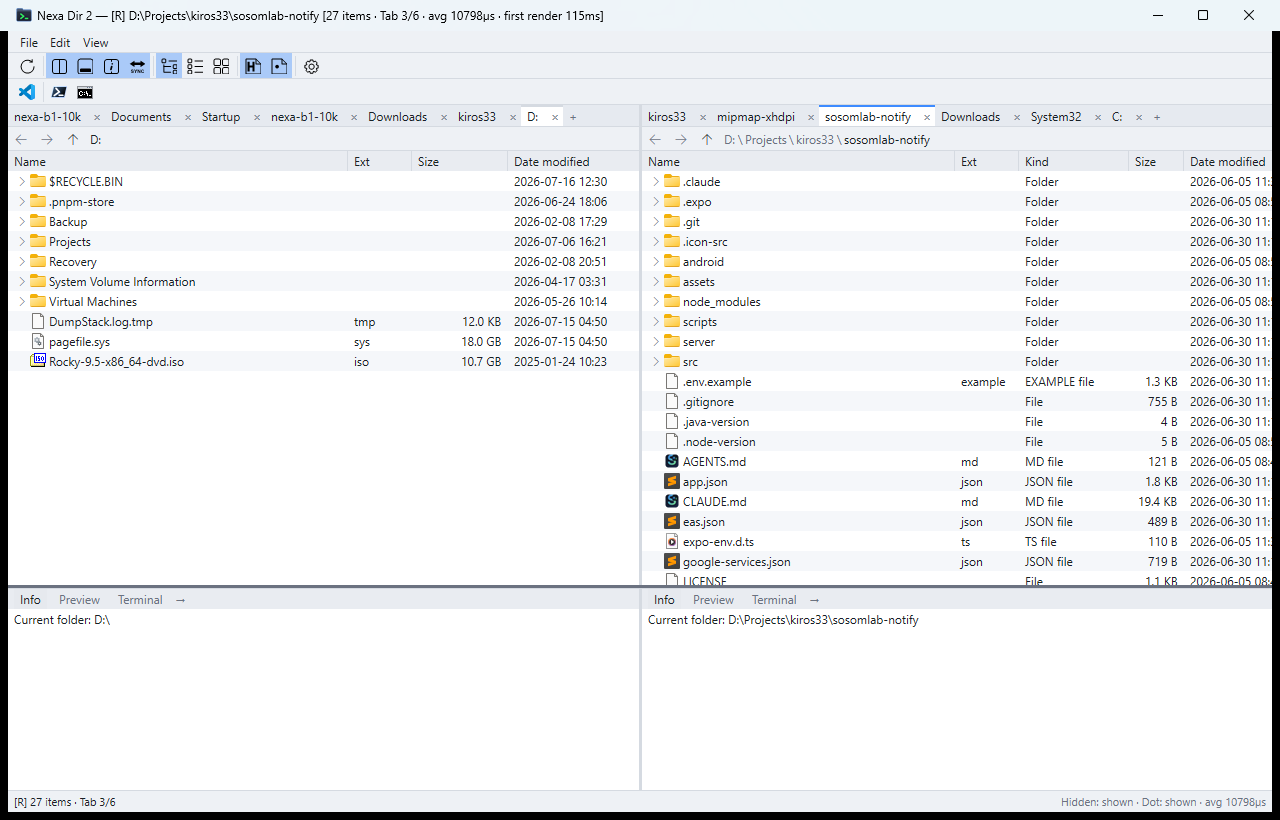
Note The image above is from the Windows-only edition. The current edition uses the same layout, but some elements such as the status bar and tab status bar are not shown in the image.
From top to bottom, the window is arranged as follows.
| Area | Contents |
|---|---|
| Menu bar | File · Edit · View · Go · Help |
| Toolbar | Groups of icon buttons (refresh, panes, view mode, display options, settings, log) |
| Quick launcher bar | Buttons for frequently used external programs (can be turned on or off) |
| File panes (left/right) | Per pane: tab strip → Back · Forward · Up · Home buttons and the path bar → file list → tab status bar |
| Bottom dock | Info · Preview · Terminal |
| Status bar | Left = messages; right = tab number · system load · app memory · license fields |
You can drag the boundaries between areas (between the left and right panes, between the panes and the dock, and between the left and right halves of the dock) to resize them. When you hover over a boundary, its line gradually highlights.
Menu bar
| Menu | Items |
|---|---|
| File | New tab · Close tab · New folder · New file · Settings… · Exit |
| Edit | Undo · Redo · Cut · Copy · Paste · Select all · Invert selection · Batch rename… |
| View | Tree/Flat/Tile view · Dual/Single file pane · Dual/Single info pane · Sync column widths · Show hidden files or folders · Show dot (.) files or folders (Windows) · Bottom dock · Quick launcher bar · Always on top · Refresh · Preview window · Command palette · Log window · Theme ▸ · Language ▸ |
| Go | Back · Forward · Parent folder · Favorites… · Add/remove current folder to/from favorites · Next tab · Previous tab · Switch pane |
| Help | About Nexa Dir · License… |
Each menu item shows an icon indicating its meaning on the left and its shortcut on the right. While a menu is open, pressing an item’s first letter (or underlined letter) jumps straight to that item.
Toolbar
| Group | Buttons |
|---|---|
| Refresh | Refresh · Always on top (📌) |
| Panes | Toggle dual/single pane · Bottom dock · Toggle dual/single info · Sync column widths |
| View | Tree · Flat · Tile |
| Display | Hidden files · Dot files (Windows) · Folders first · Case-sensitive sort · Natural sort (numbers by value) |
| Settings | Open the settings window |
| Info (far right) | Toggle the log window (≡) |
- Drag the handle in front of a group to change the group order or row (
Esc= cancel). - Right-clicking the toolbar shows a menu with a settings shortcut and order editing.
- Icon size (16/20/24/32), spacing, and so on are adjusted in Settings ▸ General ▸ Appearance.
File panes
- Tab strip — Each pane has its own independent tabs. When there are many tabs they wrap onto multiple rows (default); in settings you can switch to a single row with scroll buttons.
- Navigation buttons + path bar — Back · Forward · Up · Home buttons, plus a path bar that shows the current path as step-by-step buttons (breadcrumbs).
- File list — The default columns are Name · Status · Size · Date modified. The Extension and Type columns are hidden by default and can be turned on by right-clicking a column header.
- Tab status bar — A thin strip attached to each pane, right below the file list. It shows the number of items in the current folder and, if the folder is a git repository, a git summary. See Tab status bar for details.
Status bar
The left side of the status bar at the bottom of the window shows operation results (e.g. “Moved 3 items to the Recycle Bin”), and the right side shows the following fields.
| Field | Meaning | On click |
|---|---|---|
| Tab n/m | Tab position in the active pane | — |
| C | CPU usage of the whole PC | Details popup |
| M | Memory (Nexa Dir usage · system usage) | Details popup |
| D | Disk write ↑ / read ↓ speed | Details popup |
| N | Network download / upload speed | Details popup |
| App memory | Memory used by Nexa Dir | Memory window |
| License | License status (default “Free · Non-commercial”) | License window |
- CPU and memory usage are shown in six color levels depending on load (dim → normal → accent → orange → red).
- The triangle markers in the D/N fields blink at different rates depending on transfer speed.
- Right-click the status bar and use Configure status bar to change which fields are shown and their order. The refresh interval is Settings ▸ General ▸ Status bar ▸ “Status bar load refresh interval” (default 2000ms).
Bottom dock
A full-width strip below the file lists; switch its content with the type buttons at the top left (Info | Preview | Terminal). Turn it on and off with Ctrl+` (macOS ⌃`) or Bottom dock in the View menu. For details, see Bottom dock — Info, Preview, Terminal.
Navigation and viewing
Moving between folders
| Method | Action |
|---|---|
Double-click a folder · Enter | Enter that folder (files open with their associated program) |
Alt+↑ (macOS ⌘↑) · Up button | Parent folder |
Alt+← / Alt+→ (macOS ⌘[ / ⌘]) · mouse Back/Forward buttons | Back / Forward (separate history per tab) |
| Click a step in the path bar | Go to that folder |
| Home button | Home folder |
Going up once more from a drive root (/ on Unix) shows the This PC view.
- Windows — The list of drives with Total size and Free space columns (capacity bars in Tile view).
- macOS · Linux — Shows
/, your home folder, and mounted volumes (on Linux, USB, external disks, and network mounts; on macOS, those under/Volumes).
When you go up, you can choose whether the folder you just left is placed at the top, middle, or bottom of the view in Settings ▸ File list ▸ View & sort ▸ “Selection position when going up” (default: middle).
Typing directly into the path bar
Right-clicking the path bar switches it to an edit mode where you can type. An autocomplete list appears as you type; choose with ↑/↓ and press Enter to go there. Esc cancels. Right-clicking again while editing shows an Undo · Cut · Copy · Paste · Delete · Select all menu.
You can use expressions like these directly in the path bar.
| Input | Meaning |
|---|---|
%APPDATA% · $env:APPDATA | Environment variables (CMD · PowerShell syntax) |
$HOME · ~ · ~/Downloads | Home folder |
. · .. · sub\x | Relative paths based on this pane’s current folder |
${PWD%/*} · $(dirname X) · $(Split-Path -Parent X) | Shell-style computations such as the parent folder (only a built-in list is supported; no real shell is executed) |
shell:startup, etc. | Windows special folders |
Undefined variables and unknown expressions are left as they are, and in that case they show up as “cannot open”.
View modes
| Mode | Description |
|---|---|
| Tree view (default) | Expands folders in place inside the list. → expand · ← collapse |
| Flat view | A plain list without hierarchy |
| Tile view | An icon grid |
The view mode is remembered separately for each tab, and new tabs inherit the current mode. Folders that would turn out empty when expanded are not drawn with a ▸ marker.
Sorting
- Clicking a column header cycles ascending → descending → off.
Shift+click stacks sorting across multiple columns (with order numbers such asName ▲1Size ▼2). - When no sort column is set, items are shown by name in ascending order.
- Folders first, Case-sensitive sort, and Natural sort (compares numbers by value so that file2 comes before file10 — on by default) are toggled in the Display group of the toolbar.
- New tabs and duplicated tabs inherit the current tab’s sort, and per-tab sorting persists across restarts.
- The Total size and Free space columns in the “This PC” view cannot be sorted.
Working with columns
- Resizing — Dragging a column header boundary widens or narrows only that column. Double-clicking the boundary fits it to its content (maximum width set in settings).
- Reordering — Drag a column header and the drop position is highlighted. Cancel with
Esc. - Show/hide — Change this by right-clicking a column header, or in the “File columns” order editor in Settings ▸ File list.
- Sync column widths (on by default) — Keeps the column widths of the left and right panes the same.
- Status column — Shows cloud-synced files (always keep on this device · online-only · available on this device) and network locations with colored icons. Cloud status and network paths are supported on Windows and macOS (network mounts on Linux).
Hidden files · dot files · protected system files
| Option | Windows | macOS · Linux |
|---|---|---|
Show hidden files or folders (Ctrl+H / macOS ⌘⇧.) | Items with the hidden attribute | Hidden items + items whose names start with a dot (.) |
Show dot (.) files or folders (Ctrl+.) | Items whose names start with a dot | Not applicable (included in the hidden option) |
| Show protected operating system files (settings only) | Items with hidden + system attributes ($RECYCLE.BIN, pagefile.sys, etc.) — hidden by default | macOS system-protected items |
Scope of view options
How far the five toggles — hidden, dot files, folders first, case-sensitive, and natural sort — apply together is set in Settings ▸ File list ▸ View & sort ▸ How view options are managed.
| Value | Behavior |
|---|---|
| Folder (default) | All tabs showing the same folder, in either pane, change together, and values are remembered per folder |
| Tab | That tab only |
| Left/right pane | All tabs in that pane |
| Global | All tabs in both panes |
The checkboxes in the settings window only set the defaults for new tabs (folders with no remembered values).
Type-ahead (jump by typing)
When the file list has focus, typing letters jumps straight to an item that starts with those letters. The typed text appears as a badge in a corner of the view.
- While typing, use
↑/↓to move between other matching items.Backspaceremoves the last character andEscends the search. - Korean input works too. On Windows, switch with the Korean/English (Han/Eng) key; the status bar shows the current input language.
- The search scope (visible items · current level · everything), input timeout (default 2000ms), and badge position can be changed in Settings ▸ File list ▸ Type-ahead.
Favorites
Register folders you visit often and jump to them directly.
- Go to the folder you want to register and press
Ctrl+D(macOS⌘D) to add it to favorites. Press it again to remove it. - Press
Ctrl+B(macOS⌘B) or choose Favorites… in the Go menu to show the list below the path bar. Choose an entry to go to that folder. - Folders that no longer exist are shown in gray. Up to 64 favorites can be registered.
Scrolling
- Pushing slowly on a trackpad scrolls smoothly pixel by pixel; a mouse wheel scrolls line by line.
Shift+wheel scrolls horizontally. - Fast scroll — Spinning the wheel rapidly or holding
↑/↓increases the step to ×2, ×3, and so on, and a speed badge appears on screen. In Settings ▸ File list ▸ Fast scroll you can turn it off or change the maximum multiplier and whether it applies to the keyboard. - Settings ▸ General ▸ Appearance ▸ “Natural scrolling” reverses the scroll direction.
Panes and tabs
Dual / single pane
- The default is left/right dual panes. This is handy for copying or moving straight from one pane to the other.
- You can switch to a single pane from the toolbar or the View menu. Even when collapsed to a single pane, the right pane’s tabs and locations are preserved and reappear as they were when you go back to dual.
- Use the
Tabkey to switch the active pane.
Tabs
| Action | How |
|---|---|
| New tab | Ctrl+T (macOS ⌘T) · double-click an empty area of the tab strip |
| Close tab | Ctrl+W (macOS ⌘W) · the tab’s × |
| Next / previous tab | Ctrl+Tab / Ctrl+Shift+Tab (macOS ⌃Tab / ⌃⇧Tab) |
| Reorder tabs | Drag a tab |
| Move to the other pane | Drag a tab onto the other pane’s tab strip (the drop position is previewed; Esc cancels) |
| Lock · Pin · Duplicate | Tab right-click menu |
- A locked tab cannot be closed by accident. A pinned tab shows a 📌 marker. Duplicate opens a new tab at the same location.
- What happens when you double-click a tab (close · pin · lock), the minimum tab width (default 80), and the margin after the close button are set in Settings ▸ Tabs ▸ General.
Session restore
When you restart the app, each pane’s tab list, the active tab, expanded folders, per-tab sorting, column visibility and widths, and the window size all come back as they were. Changes are collected briefly and then saved to session.conf in the settings folder.
Tab status bar — folder info and git summary
The strip below each pane’s file list shows the following (turn it on/off with Settings ▸ Tabs ▸ Status bar ▸ “Tab status bar”).
- Folder status — The number of visible items. Click it to see details: the actual count including hidden items, broken down into folders and files.
- git summary — If the current folder is a git repository, shows the branch name and change status with Starship-style symbols.
| Symbol | Meaning |
|---|---|
⇡2 / ⇣1 | Commits ahead of / behind the remote |
+ | Staged changes |
! | Modified files |
? | Untracked files |
✘ | Deleted files |
» | Renamed files |
= | Conflicts |
$ | Number of stashes |
- The git summary is obtained by running the
gitinstalled on your PC. Without git, only the branch name is shown. - If things slow down in a large repository, turn off “Count untracked git files” or “Show git summary” in Settings ▸ Tabs ▸ Status bar. Detailed values such as the query time limit and retry interval after failure are in Settings ▸ File list ▸ Folder watching (advanced). By default, git is not re-queried while the window is inactive.
File operations
Selection
| Action | Result |
|---|---|
| Click | Select one item |
Ctrl+click (macOS ⌘+click) | Add to / remove from selection |
Shift+click | Range selection |
| Drag in an empty area | Rectangle (rubber-band) selection |
Ctrl+A | Select all |
Ctrl+Shift+A | Invert selection (based on visible items; selections that were not visible are cleared) |
Space | Toggle selection of the cursor row |
Multi-selection across folders — In Tree view, the ▸ marker (expand) and the name (select) are separate, so you can keep several folders expanded and pick items from different folders together.
Copy · move · paste
- Select items and press
Ctrl+C(copy) orCtrl+X(cut). Cut items are shown dimmed in the list. - Press
Ctrl+Vat the destination.
The paste destination is determined by these rules:
- If a single folder is selected, into that folder
- If a single file is selected, into the folder containing that file (for a file in a subfolder expanded in the tree, that subfolder)
- If nothing or multiple items are selected, into the current folder
Because it uses the operating system clipboard directly, you can copy and paste to and from Windows Explorer, Finder, and file managers. Copying into the same folder adds a number, as in name (2).
Copy to folder… / Move to folder… — Right-click items and choose “Copy to folder…” or “Move to folder…” to open a folder picker starting at the other pane’s folder. Once you confirm the folder, the transfer starts immediately.
Transfer progress and conflict handling
- During a transfer, the progress window shows a per-file progress bar and overall progress. If you stop with
Escor [Cancel], the remaining items are skipped. - If an item with the same name already exists, you are asked per item: Overwrite · Overwrite all · Skip · Cancel. The prompt also shows the destination folder.
- Overwriting first creates the new file temporarily and then replaces the old one, so the existing file is preserved even if you cancel or the operation fails midway.
- When the transfer finishes, the progress window closes automatically after the configured time (default 2000ms; 0 closes it immediately).
Fast copy — When copying large folders, the operating system’s fast copy feature is used, and small files inside a folder are copied several at a time in parallel. Copies keep the same date modified as the originals. In Settings ▸ File list ▸ File transfer (advanced), you can change “Use the operating system’s fast copy”, “Concurrent jobs for folder copy (0 = auto)”, and “File size to copy without cache”.
Drag and drop
| Key | Action |
|---|---|
| No modifier | The receiving side’s default rule (typically same drive = move, different drive = copy) |
Ctrl | Copy |
Shift | Move |
- While dragging, the cursor changes to move (arrow) · copy ([+]) · not-allowed shapes, and the status bar shows “Move → destination” / “Copy → destination”. Switching
Ctrl/Shiftmid-drag takes effect immediately. - Dropping on a folder row puts the items into that folder; dropping on a file row or empty area puts them into that list’s folder.
- Hovering over a folder while dragging (default 3 seconds) expands it in the tree, or enters it in the list. Hovering over another tab switches to that tab. Moving to the edge of the list scrolls automatically.
- You cannot drop items onto themselves or their own subfolders. Press
Escto cancel a drag.
Supported scope by OS:
| OS | App → other programs | Other programs → app | Within the app window |
|---|---|---|---|
| Windows | Explorer · Windows Terminal (path text) · virtual machine guests, etc. | Explorer, etc. | Supported |
| Linux (X11 · XWayland) | File managers such as Nautilus · terminals | Supported | Supported |
| Linux (Wayland only) | Not supported | Not supported | Supported |
| macOS | Not supported (in progress) | Not supported (in progress) | Supported |
On Linux, a name box such as “Copy · filename” / “Move · filename and 1 more” follows next to the cursor while dragging.
Delete
| Action | Result |
|---|---|
Del (macOS ⌘⌫) | Move to the Recycle Bin/Trash — can be undone with Ctrl+Z |
Shift+Del (macOS ⌘⌥⌫) | Permanent delete — the confirmation dialog’s default button is “Cancel”. Cannot be undone |
- Before deleting, the app checks whether another program has the file locked, and tells you why if it fails.
- On Linux, files on a disk other than your home disk (USB, external disks,
/tmp, etc.) are sent to that disk’s trash folder (.Trash-<user ID>), where they are visible and restorable from the file manager’s Trash. - When moving or deleting symbolic links or junctions across drives, only the link itself is handled; the original file it points to is not touched.
Rename · create new
- Press
F2, or slowly click a selected item once more, to start editing its name.Enterconfirms ·Esccancels. Right-clicking while editing shows an edit menu. - On Windows, shortcuts (.lnk) are shown with the extension hidden, and the extension is added back when renaming.
Ctrl+Shift+N(macOS⌘⇧N) creates a new folder; New file in the File menu creates a new file. Both go straight into name editing as soon as they are created.- Right-click an empty area ▸ New ▸ to create a new file of a document type registered with the OS.
Undo · redo
Ctrl+Z(undo) /Ctrl+YorCtrl+Shift+Z(redo). On macOS,⌘Z/⌘⇧Z.- Move · copy · rename · create new · delete to Recycle Bin · batch rename (the whole batch at once) can be undone. Up to 100 steps.
- Permanent delete cannot be undone.
- The right-click menu shows what will be undone, as in “Undo: (operation)”.
Right-click menu
The item (row) menu contains both the app’s own items and OS items.
- App items: Cut · Copy · Paste · Paste into folder · Permanent delete · Undo/Redo · Copy path · Copy name · Copy/Move to folder… · Checksum… · Extract ▸ (archives) · Find duplicate files… (folders) · New ▸
- Windows — The same shell menu as Explorer (including installed extensions such as 7-Zip · Git · Send to · Properties) is merged in.
Shift+right-click also shows extended items such as “Copy as path” and “Open PowerShell window here”. - Linux — Open with default app · Open with other app ▸ · Compress… (installed tools) · Properties · Open in terminal · Show in file manager · Send by email… · Scripts ▸ (executables in the Nautilus scripts folder
~/.local/share/nautilus/scripts) are shown with icons. - macOS — Only the app’s own items are shown.
The empty-area (background) menu contains New · Paste · Find duplicate files… · Compare folder with other pane… and OS background items (Linux: Open in terminal · Open in file manager · Properties).
The order and visibility of menu items are changed in the “Context menu items” order editor in Settings ▸ File list ▸ Context menu (including Linux OS items).
Note On Windows, once shell extensions are loaded they occupy memory (tens of MB) until the program exits. If you want to save memory, change Settings ▸ Context menu ▸ “Shell extension items in the right-click menu” to Only on Shift+right-click. The normal menu then appears instantly with app items only, and you hold
Shiftwhile right-clicking only when you need the shell items.
Batch rename
Rename many files at once according to rules.
-
Select the items to rename and open Batch rename… with
Ctrl+Shift+R(macOS⌘⇧R) or from the Edit menu. -
Add action cards with
+. Cards are applied from top to bottom.Action Description Replace (text) Find and replace text Replace (regex) Find and replace with a regular expression Change case Keep · UPPERCASE · lowercase · Per word · Sentence case Insert text Prepend or append Add sequence number Start value · step · digits · position Insert date Date modified/created as tokens such as ${YYYY}-${MM}-${DD}(based on local date) -
For each card you can choose which part of the name it applies to (name · name+extension · extension · extension including the dot).
-
The table on the right immediately shows before → after. Empty names, forbidden characters, duplicates, and names that already exist are flagged as conflicts.
-
Apply with [Rename] or
Enter. Even if some rows have conflicts, the remaining items are renamed, and swaps such asa↔bare handled too. -
A single
Ctrl+Zundoes the whole batch.
Frequently used action combinations can be saved by name as presets and loaded again (in renames\ in the settings folder).
Bottom dock — Info, Preview, Terminal
Info
- Shows the selected item’s name · type · size · dates · path, and so on. When multiple items are selected, it shows the count.
- Folder size — When you select a single folder, “Size: calculating…” is followed by the total for everything beneath it and “Contains: N files, M folders”. If you move quickly through several folders with the keyboard, they wait as “Waiting to measure…” and only the folder you stop on is calculated. You can turn this off with Settings ▸ Bottom dock ▸ “Calculate folder size in the info pane”.
- Dual / single info — Dual shows the left and right panes’ selections separately; single shows the active pane’s selection at full width. When the file pane is single, it is fixed to single.
- Drag to select text and copy it with
Ctrl+C, or use right-click ▸ Copy / Select all. Double-click = word, triple-click = line selection.
Preview
- Text — Shows the beginning of the file. Binary files are shown as “No text preview”.
- Images — Common image formats such as png · jpg · bmp · gif · ico are shown with their aspect ratio preserved.
- Archives — zip · tar · cab · rar · 7z · gz and others show the list of contents and a size summary without extracting.
- Markdown — The bundled plugin renders it GitHub-style and also draws Mermaid diagrams.
- Large view — Open a separate window with
F3(macOS⌘⇧Y) or the ↗ button at the top right of the preview. Archives open in a table window that supports sorting and multi-selection. Close withEsc. - You can drag to select text in the preview and copy it.
Preview plugins
Preview can be extended with .wasm plugins. Plugins run in an isolated environment with a computation limit, so a plugin cannot freeze the app.
- Two bundled plugins:
markdown.wasm(Markdown + Mermaid) ·archive.wasm(ISO · ar · cpio archive listings). - Put plugins you have downloaded into
plugins\in the settings folder, or install them from the Settings ▸ Plugins page. If names collide, the one in the user folder takes priority. - In Settings ▸ Plugins you can turn each plugin on or off; when off, the built-in preview is used instead.
- Plugins made for the Windows-only edition work as-is without modification.
Terminal
Clicking Terminal in the bottom dock starts a shell in the current folder. “(shell) starting…” is shown until the shell is ready.
| OS | Shell selection order |
|---|---|
| Windows | pwsh → powershell → cmd |
| macOS | $SHELL → zsh → bash → sh |
| Linux | $SHELL → bash → sh |
- You can also specify one directly in Settings ▸ Bottom dock ▸ Terminal ▸ “Terminal shell”.
- Supports color (16/256/true color), bold and italic, full-width characters, 800 lines of scrollback, mouse drag selection, and wheel scrolling. Copy and paste with
Ctrl+C/Ctrl+V; right-clicking shows a Copy · Paste · Select all menu. - Clicking the → button next to the
Terminallabel in the dock moves the terminal to the file pane’s current folder (restarting the shell if it has exited). - Match system default terminal (on by default) — On Windows, follows the font, size, and color scheme of the Windows Terminal default profile; on Linux (GNOME), follows the system monospace font name.
- The theme can be System/Dark/Light, which follow the app theme, or one of 15 color schemes (default Campbell for dark, GitHub Light for light).
- Line wrapping is off by default, so long lines scroll horizontally (default 240 columns). You can turn it on in settings.
- The copy format can be plain text (default) · HTML · RTF · all. Copying as HTML/RTF keeps the terminal colors in Word and similar apps.
- If a Nerd Font is installed, icon glyphs are automatically drawn with that font.
Tools
Command palette
Open it with Ctrl+Shift+P (macOS ⌘⇧P) or Command palette in the View menu. Type part of a command name (Korean also works) to narrow the list, and press Enter to run it. Recently run commands appear at the top. Close it with Esc or by clicking outside.
Checksum
- Right-click a file and choose Checksum… (multiple files can be selected).
- By default it calculates CRC32 · MD5 · SHA-1 · SHA-256. The algorithms are calculated in parallel, and large files show a progress bar and speed.
- Click a result row to copy the value. Paste an expected value into the compare field and it tells you whether it matches or not.
- If the total exceeds 512MB, it does not start automatically and waits for the [Calculate] button. Cancel with
Esc.
The algorithm list (e.g. adding SHA-512) and the auto-calculation limit are changed with “Checksum algorithms” and “Checksum auto-calculation limit” in Settings ▸ File list ▸ Context menu. Only one calculation job runs at a time.
Extracting archives
- Right-click a zip · tar · tar.gz (tgz) · gz file and choose Extract ▸.
- Choose Extract here or Extract to "
" folder . - A progress window appears, and you can stop it with [Cancel]. When it finishes, a notification appears and the list is refreshed.
- Files that already exist with the same name are skipped.
- Entries whose path inside the archive points outside the destination folder (so-called zip slip) are blocked.
- 7z · rar · cab support preview (listing) only; extraction is not supported yet. Password-protected zips cannot be extracted either.
Finding duplicate files
- Right-click an empty area to run Find duplicate files… on the current folder, or select folders and right-click to run it on the selected folders.
- It narrows down by size → beginning of file → full content (SHA-256) and shows files with identical content in groups. Zero-byte files are excluded.
- Choose a keep rule for each group (default = newest), and the rest are marked with ✓. Toggle individual items with
Space. - Click [Send to Recycle Bin] to send the ✓ items to the Recycle Bin/Trash. This can be undone with
Ctrl+Z.
Folder compare · sync
- Open the two folders to compare in the left and right panes.
- Right-click an empty area and choose Compare folder with other pane….
- It compares including subfolders and shows only the differences in a table (only on one side · different). The default criteria are size and modification time (2-second tolerance), and there is also a button to compare by content.
- Choose a direction.
- [→] Make the right side match the left
- [←] Make the left side match the right
- [⇄] Match each item to whichever side is newer
- When copying in the progress window finishes, it automatically compares again, so if everything now matches, the table is empty.
Note Sync only copies. “Mirror delete”, which removes files that exist only at the destination, is not performed yet. Items with the same name that changed on both sides are not decided automatically; they are left for you to decide.
Quick launcher bar
Puts buttons for frequently used external programs below the toolbar. Clicking a button runs that program in the active pane’s current folder (%path% in the arguments is replaced with the current folder).
- Right-clicking the launcher bar shows an Edit · Delete · Add · Add separator · Hide · Settings menu.
- Add/edit uses a single line in the format
label|executable|arguments. Example:VS Code|code|%path% - If you put a folder path in place of the executable, that button moves the active pane to that folder.
- Turn it on and off with Quick launcher bar in the View menu.
Log window
Open it with F10 (macOS ⌘⇧L) or the ≡ button at the far right of the toolbar. It shows the app’s internal records, such as folder opens, file operation results, folder watching, and plugin activity.
- Records are kept in memory only (default maximum 10000 lines) and are never written to disk automatically. If needed, export them with right-click ▸ Save to file.
- Options include type filters, line wrap, newest first, auto-scroll, and always on top.
- Including the log when reporting a problem helps find the cause.
Memory window
Opens when you click the App memory field in the status bar. It breaks down the memory used by Nexa Dir by feature (file list · icon cache · preview/plugins · terminal · log · undo history, etc.), and on Windows also shows a “Private working set” row measured the same way as Task Manager. The [Trim heap] button returns unused memory to the operating system. The app also trims its memory on its own after 60 seconds without input (Settings ▸ Appearance ▸ “Idle memory trim”).
Performance mode
Turning on Settings ▸ General ▸ Appearance ▸ Performance mode cuts back heavy extras all at once (icons before file names, menu icons, folder size calculation, status bar load monitoring, etc.). Settings that this mode decides for you are locked in the settings window with the reason shown, and they return to their original values when you turn the mode off.
Keyboard shortcuts
In the macOS column, ⌘ is Command, ⌥ is Option, ⇧ is Shift, and ⌃ is Control. Linux is the same as Windows. All shortcuts can be changed in Settings ▸ General ▸ Shortcuts.
File · edit
| Action | Windows · Linux | macOS |
|---|---|---|
| New tab | Ctrl+T | ⌘T |
| Close tab | Ctrl+W | ⌘W |
| New folder | Ctrl+Shift+N | ⌘⇧N |
| Settings | Ctrl+, | ⌘, |
| Quit | (close the window) | ⌘Q |
| Undo | Ctrl+Z | ⌘Z |
| Redo | Ctrl+Y / Ctrl+Shift+Z | ⌘⇧Z / ⌘Y |
| Cut · Copy · Paste | Ctrl+X · Ctrl+C · Ctrl+V | ⌘X · ⌘C · ⌘V |
| Select all | Ctrl+A | ⌘A |
| Invert selection | Ctrl+Shift+A | ⌘⇧A |
| Batch rename | Ctrl+Shift+R | ⌘⇧R |
| Rename | F2 | F2 |
| Delete to Recycle Bin/Trash | Del | ⌘⌫ / Delete |
| Permanent delete | Shift+Del | ⌘⌥⌫ / Shift+Delete |
View
| Action | Windows · Linux | macOS |
|---|---|---|
| Show hidden files | Ctrl+H | ⌘⇧. |
| Show dot (.) files | Ctrl+. (Windows only) | — |
| Bottom dock | Ctrl+` | ⌃` |
| Refresh | F5 | ⌘R / F5 |
| Cycle theme (System → Light → Dark) | F6 | F6 |
| Preview window | F3 | ⌘⇧Y / F3 |
| Command palette | Ctrl+Shift+P | ⌘⇧P |
| Log window | F10 | ⌘⇧L / F10 |
Navigation · panes · tabs
| Action | Windows · Linux | macOS |
|---|---|---|
| Back | Alt+← | ⌘[ |
| Forward | Alt+→ | ⌘] |
| Parent folder | Alt+↑ | ⌘↑ |
| Open selected item | Enter / Alt+↓ | Enter / ⌘↓ / ⌘O |
| Favorites list | Ctrl+B | ⌘B |
| Add/remove current folder to/from favorites | Ctrl+D | ⌘D |
| Switch pane | Tab | Tab |
| Next tab | Ctrl+Tab | ⌃Tab / ⌘⇧] |
| Previous tab | Ctrl+Shift+Tab | ⌃⇧Tab / ⌘⇧[ |
| Context menu | Shift+F10 / Menu key | ⌃Return / Shift+F10 |
Inside the file list
| Key | Action |
|---|---|
↑ / ↓ | Move the cursor + select one item |
PgUp / PgDn / Home / End | Page · to the start · to the end |
Shift + navigation keys | Range selection |
Ctrl + navigation keys | Move only the cursor, keeping the selection |
Space / Ctrl+Space | Toggle selection of the cursor row |
→ / ← | Expand folder · go to child / collapse · go to parent |
| Typing letters | Type-ahead (jump to an item starting with those letters) |
Esc | Context-dependent cancel (column drag → transfer → open menu → path editing) |
Mouse
| Action | Result |
|---|---|
| Mouse Back/Forward buttons | Back / Forward |
| Click ▸/▾ | Expand/collapse (independent of selection) |
| Drag in an empty area | Rectangle selection |
| Double-click an empty area of the tab strip | New tab |
Click a column header / Shift+click | Cycle sort / multi-column sort |
| Double-click a column boundary | Fit width to content |
Shift+wheel | Horizontal scroll |
Menus, buttons, and switches in the settings window act when you release the mouse button. If you press, drag outside, and release, nothing happens — so that is how you can cancel a mistaken press.
Changing shortcuts
- Open the settings window (
Ctrl+,) and go to General ▸ Shortcuts. - Choose a command, click [Assign], and press the key combination you want. If it overlaps with another command, you are told it “conflicts with …”.
- [Clear] removes the shortcut, and [Reset] restores the OS default.
The default set is chosen automatically to match the OS you are running. If you want to use another OS’s set, change the advanced setting key.preset to windows / macos / linux.
Settings
Settings window
Open it with Ctrl+, (macOS ⌘,), Settings… in the File menu, or the ⚙ button on the toolbar.
- There is a category tree on the left and a search box at the top. If you enter several words, only items containing all of them remain, and “N matches” is shown.
- Most items are applied and saved as soon as you change them (there is no Save button). Some items, such as font names, show “Applies after restart”.
- Each item has a [Reset] button that restores its default value.
- Fine-tuning items are only visible when you turn on Advanced (“N advanced settings hidden” is shown).
- Items that become meaningless because of other settings are locked, and the reason is shown below the card.
- The [Edit JSON…] button lets you view and edit all settings as text.
Main items by category
| Category | Main items |
|---|---|
| General ▸ Appearance | Theme (System/Light/Dark) · Always on top · Pane mode · Info mode · Show launcher bar · Toolbar icon size · Double-click interval · Natural scrolling · Performance mode · Idle memory trim · Show advanced settings |
| General ▸ Fonts | Default font · File list font · Terminal font (comma-separated list = fallback order) · Right-click menu font · Dialog font · Bold folder names · Bold/italic column headers |
| General ▸ Status bar | Status bar fields · Load refresh interval · Status bar font |
| General ▸ Language | System · 한국어 · English · 日本語 |
| General ▸ Shortcuts | Per-command shortcut assignment |
| File list ▸ View & sort | Show hidden/dot/protected system files · Folders first · Case-sensitive · Natural sort · How view options are managed · Default view mode · Sync column widths · File columns · Icons before file names · Custom icons |
| File list ▸ Type-ahead | Enabled · Search scope · Input timeout · Badge position |
| File list ▸ Fast scroll | Enabled · Maximum multiplier · Also apply to keyboard navigation · Speed badge |
| File list ▸ Context menu | Menu item order · Wrap-around navigation · Menu icons · Select by letter key · Shell extension items · Checksum algorithms |
| File list ▸ File transfer | Completion window close delay · Drag hover switch delay · Fast copy (advanced) |
| File list ▸ Folder watching | Detailed values for git re-querying (advanced) |
| Tabs ▸ General | Tab double-click action · Multiple rows · Scroll button position · Minimum width · Margin after close button |
| Tabs ▸ Status bar | Tab status bar · Show git summary · Count untracked files · Refresh interval |
| Bottom dock ▸ Bottom dock | Visibility · Height · Split · Folder size calculation |
| Bottom dock ▸ Terminal | Line wrap · Columns · Theme · Copy format · Match system default terminal · Shell · Fallback fonts |
| Plugins | Plugin list · Enabled · Preview mapping |
| Log | Open at startup · Output format · Maximum lines, etc. |
Order / visibility editing
The toolbar, file columns, context menu, and status bar fields are all handled in the same kind of editor window. Use checkboxes to set visibility (turning off a group hides its children too), and change the order with the up/down buttons or by dragging. Press Esc mid-drag to cancel.
Custom icons
In Settings ▸ File list ▸ View & sort ▸ “Custom icons”, enter type:pattern=image rules separated by ; to change the icons of specific files, folders, or extensions. Images can be PNG · BMP · GIF · JPEG, and relative paths are based on icons\ in the settings folder. Priority is path > name > folder/extension.
Settings file location
The settings folder is determined in this order:
- If the environment variable
NDIR_HOMEis set, that folder - If a writable
datafolder already exists next to the executable, that folder (portable) - Otherwise, the OS user settings folder
| OS | Default settings folder |
|---|---|
| Windows | %APPDATA%\nexa-dir |
| macOS | ~/Library/Application Support/nexa-dir |
| Linux | ~/.config/nexa-dir |
Installed versions (MSI · pkg · deb/rpm · Homebrew) never use a data folder next to the executable, even if one exists; they always use the OS user folder.
Files in the settings folder:
| Name | Contents |
|---|---|
settings.conf | Settings (only values that differ from the defaults are recorded) · including favorites and launcher entries |
session.conf | Session: tabs · panes · expanded folders · sorting, etc. |
renames\ | Batch rename presets |
plugins\ | Preview plugins added by the user |
lang\ | Language files for overriding UI text (optional) |
icons\ | Custom icon images (optional) |
crash\ | Abnormal termination records (only if any occurred) |
*.license | Installed license files (if any) |
Migrating from the previous edition (Windows-only edition)
The previous edition stored settings.cfg and session.cfg in the data\ folder next to the executable (or %LOCALAPPDATA%\NexaDir\data if that was not writable). The current edition’s default settings folder is different: %APPDATA%\nexa-dir.
- Settings are migrated automatically. The first time you run the current edition, it imports the previous edition’s (0.22.0 or earlier) settings once and saves them to the current edition’s settings folder. There is no need to copy anything yourself.
- After the import, the two editions’ settings are managed separately. Settings changed in the previous edition are not reflected in the current edition again.
- The previous edition’s cloud connection data (
data\secrets\) is not used by the current edition.
Data and privacy
- The current edition does not communicate over the network. There is no feature that automatically sends update checks, usage statistics, or error reports.
- All data is stored only in the settings folder. Log window records exist only in memory and become a file only when you choose “Save to file” yourself.
- After an abnormal termination, a record file may be left in
crash\in the settings folder. It is never sent automatically; you can attach it yourself when reporting a problem. - The license is a signed file verified on your PC without connecting to a server. The “request code” used to request a commercial license contains your name, email, and this PC’s device code, and is only shared when you copy it yourself and send it by email.
- The git summary runs the
gitprogram installed on your PC against local repositories only (no remote operations such asfetch). - Commands run in the terminal are executed exactly as you type them; whether a command uses the network depends on the command.
- The Windows-only edition’s direct cloud connection (OneDrive · Google Drive · Dropbox OAuth sign-in) is not included in the current edition. If you used this feature in the previous edition, see the Privacy Policy for its data and how to revoke access.
Troubleshooting
Installation · launch
On Windows, a “Windows protected your PC” dialog appears and the app does not run.
SmartScreen warns because the app is not code-signed yet. Click More info → Run anyway. You can verify the downloaded file by comparing sha256sums.txt from Releases with the output of Get-FileHash <file> -Algorithm SHA256.
On macOS, the app does not open or says it is “damaged”.
This is caused by the quarantine flag. Run xattr -dr com.apple.quarantine "/Applications/Nexa Dir.app" and open it again. If you install with Homebrew, this is handled automatically.
On Linux, Korean text appears as boxes (□).
No Korean (CJK) font is installed. Install one with sudo apt install fonts-noto-cjk (on Fedora, google-noto-sans-cjk-fonts or similar) and restart the app.
On Linux, the app icon appears as a generic shape such as a gear. If you installed from a deb/rpm package, the proper icon is registered. This happens when you use a self-built executable, which has no desktop entry (.desktop) or icon.
In PowerShell, the output of nexa-dir --selfcheck is jumbled or cannot be captured.
Use the console helper executable ndir.exe, as in ndir --selfcheck.
Self-check
To check whether something is wrong with your installation environment, run the self-check from a console.
ndir --selfcheck          # Windows (PowerShell · cmd)
nexa-dir --selfcheck      # macOS · Linux
It checks items such as writing to the settings folder, fonts, the Recycle Bin/Trash, the clipboard, and the terminal shell, and shows pass/warning/fail in a table. Please include this output when reporting a problem.
Display · behavior
The theme is set to “System”, but it does not follow when I change the OS theme. On Windows, the app checks the OS setting about every 2 seconds and checks again when you return to the window. Wait a moment or click the window once. The View ▸ Theme menu also shows the current OS value, as in “System (Dark)”.
The right-click menu appears slowly (Windows). Loading installed shell extensions (cloud drives, antivirus, etc.) takes time. The menu first appears with the app items, and shell items are filled in as they arrive (“Loading shell items…”). Changing Settings ▸ Context menu ▸ “Shell extension items in the right-click menu” to Only on Shift+right-click makes the normal menu appear instantly.
I changed a file outside the app, but it does not show up in the list right away.
In most cases, folder watching reflects changes immediately. On network paths or cloud-synced folders, notifications may be late or may not arrive, so refresh with F5.
The git display in the tab status bar is slow, or the computer gets busy. In very large repositories, git queries can take a long time. Turn off “Count untracked git files” or “Show git summary” in Settings ▸ Tabs ▸ Status bar. If a query exceeds the time limit (default 5 seconds), it is not retried for a while (default 5 minutes).
Memory usage seems to have grown. On Windows, once shell extensions are loaded via a right-click, that memory remains until you quit the program. Check per-feature usage in the memory window (click the App memory field in the status bar) and try [Trim heap]. If you change shell extension items to “Only on Shift+right-click”, they are not loaded during normal use.
I changed a setting, but it has no effect. Items marked “Applies after restart”, such as font names, require restarting the app. If Performance mode is on, some items are locked and forced values are used (the reason is shown below the card).
I use the portable version, but settings are saved to the PC instead of the USB drive.
You need to create the data folder next to nexa-dir.exe yourself. If the folder does not exist, %APPDATA%\nexa-dir is used.
In a Linux Wayland session, drag and drop with other programs does not work. The app opens as an X11 window through XWayland, and in that case it can exchange files with Nautilus and others. In a pure Wayland environment where X11/XWayland is not available, only drag and drop within the app window works.
Reporting a problem
Post to GitHub Issues (https://github.com/SosomLab/nexa-dir3/issues) with your OS and version (Help ▸ About Nexa Dir), steps to reproduce, and if possible the self-check output, the log window contents, and the record files in the crash\ folder.
Differences from the previous edition (Windows-only edition)
The current edition was ported using the previous edition’s feature list as a checklist. These are the differences users should know about.
Features not yet in the current edition
| Feature | Status |
|---|---|
| Cloud links · direct connection (OneDrive · Google Drive · Dropbox) | Pending (only placeholder setting items exist) |
| Virtual file paste (Remote Desktop copies · Outlook attachments · items inside zip folders · phone MTP files) | Not supported |
| Instant reflection of OneDrive cloud changes (shell change notifications) | Not supported — refresh with F5 |
| Preventing downloads when previewing online-only cloud files | Not supported — previewing may trigger a file download |
Changed defaults (intentional differences)
| Item | Previous edition | Current edition |
|---|---|---|
| Default theme | Dark | System |
| Default columns | Name · Extension · Size · Date modified · Type | Name · Status · Size · Date modified |
| Scope of view options | Left/right pane | Folder |
| Sorting | Alphabetical | Natural sort (numbers by value) |
| Sort indicator | ▲ Name ① (arrow in front, order number even for a single sort) | Name ▲ (arrow after, order number only for multiple columns) |
| When no sort column is set | Order returned by the OS | Name ascending |
| Protected operating system files | Shown | Hidden |
| Terminal line wrap | On | Off (fixed 240 columns + horizontal scroll) |
| Windows installer | Inno Setup (per-user install) | MSI (whole computer · Program Files) |
| Settings location | data\ next to the exe | %APPDATA%\nexa-dir (or data next to the exe, if it exists) |
New in the current edition (not in the previous edition) macOS and Linux support, system load fields in the status bar, tab status bar and git summary, memory window, log window, command palette, performance mode, favorites, invert selection, natural sort, folder size, checksums, archive extraction, duplicate file finder, folder compare and sync, fast copy, copy/move to folder, variable expansion in the path bar, hiding protected system files, the Status column, toolbar group arrangement, editing the launcher via right-click, menu icons, letter keys, and wrap-around navigation, single-row tab mode, display of locked settings, Korean type-ahead, and more.
Version history
Version flow summary
| Range | Period | Edition | Highlights |
|---|---|---|---|
| v0.24.0 | 2026-10-10 | Current edition | Linux drag and drop completed · Linux right-click menu phase 2 · sort inheritance/persistence · settings lock phase 2 |
| v0.23.0 – v0.23.3 | 2026-10-05 – 10-08 | Current edition | First cross-platform release (Windows · macOS · Linux) · many new tools · command palette · log window |
| v0.21.0 – v0.22.0 | 2026-10-01 – 10-02 | Windows-only edition (final) | Edit menu clipboard · trackpad scrolling · fast scroll · faster right-click menu |
| v0.17.0 – v0.20.0 | 2026-08-23 – 09-08 | Windows-only edition | Virtual file paste · archive preview · settings window rebuild · terminal themes |
| v0.12.0 – v0.16.0 | 2026-07-27 – 08-11 | Windows-only edition | WASM plugins · cloud connection · automatic refresh |
| v0.6.0 – v0.11.0 | 2026-07-15 – 07-22 | Windows-only edition | First release · winget/Chocolatey listing · Japanese · tab/transfer UX |
| v0.1.0 – v0.5.0 | 2026-07-11 – 07-14 | Windows-only edition (development stage) | Viewer core → shell skeleton → file operations → bottom dock |
- Version numbers continue across editions (Windows-only edition 0.22.0 → current edition 0.23.0).
- Current edition releases are at
https://github.com/SosomLab/nexa-dir3/releases/tag/v<version>, and Windows-only edition releases are athttps://github.com/SosomLab/nexa-dir2/releases/tag/<version>(no leadingv).
v0.24.0 — 2026-10-10
A feature update focused on completing Linux drag and drop and enhancing the right-click menu. Starting with this version, release notes and package descriptions are written in English.
Added
- Drag-and-drop exchange of files with other programs such as Nautilus on Linux (X11 · XWayland). While dragging, a name box such as “Copy · name” / “Move · name and N more” follows the cursor, and switching only
Ctrl/Shiftwhile holding still takes effect immediately. With no modifier, the receiving side’s default rule applies. - Drag and drop within the app window on macOS and Linux (including Wayland).
- Right-click Copy to folder… / Move to folder… (all three OSes).
- Linux right-click menu phase 2 — background menu (Open in terminal · Open in file manager · Properties), item menu (Open in terminal · Show in file manager · Send by email), Nautilus Scripts ▸, item icons, and order/visibility editing for OS items.
- Settings for minimum tab width (
tabs.min_width, default 80) and the margin after the close button. - A setting for when shell extension items appear in the right-click menu (Always · Only on Shift+right-click · Never).
Improved
- New tabs and duplicated tabs inherit the current tab’s sort (including multiple columns), and per-tab sorting persists across restarts.
- When another setting, such as Performance mode, decides a value, the settings window shows the forced value and the reason.
- Menus, settings switches, and buttons act when the mouse button is released (releasing outside after pressing cancels).
- Memory savings — preview images are kept as downscaled copies, and Windows shell extension DLLs are cleaned up.
Fixed
- Files on other disks (USB,
/tmp, etc.) could not be sent to the trash on Linux. - “Find duplicate files” and “Compare folder with other pane” were missing from the Windows empty-area right-click menu.
Changed
- The self-check menu is hidden in release builds (the command-line
--selfcheckstill works).
v0.23.3 — 2026-10-08
Improved
- Natural sort became the fifth tab view option — the toolbar toggle applies within the scope of “How view options are managed”, and the setting value becomes the default for new tabs. Per-tab values persist across restarts.
- Load control for git queries in the tab status bar — waits until changes settle before querying, retry interval after failure, time limit, pausing while the window is inactive, and instant branch name updates (four advanced folder watching settings).
v0.23.2 — 2026-10-08
Added
- Windows console helper executable
ndir.exe— command-line output such as--selfcheckkeeps its order and can be captured correctly in PowerShell. - git summary options — turn off display, turn off counting untracked files, combined ahead/behind marker (⇕).
Improved
- The “System” theme now follows OS theme changes on Windows while running (about every 2 seconds + when returning to the window).
- Multiple checksum algorithms are calculated simultaneously, finishing at the speed of the slowest algorithm.
- Tidied up the memory window’s size and layout, reduced memory used for zip handling, and removed unnecessary redraws during folder size calculation.
v0.23.1 — 2026-10-07
Added
- Command palette (
Ctrl+Shift+P/⌘⇧P). - Log window (
F10) — records kept in memory only, type filters, save to file. Toggle with ≡ at the far right of the toolbar. - Theme ▸ · Language ▸ submenus in the View menu, with the current OS value shown on the “System” item.
- A “Private working set” row, measured the same way as Task Manager, in the memory window.
- Settings for the display duration and style of flash messages (briefly shown notices).
Improved
- The git summary is shown with Starship-style symbols and updates on repository changes, file operations, and returning to the window.
- Job queue for folder size calculation — limits concurrent calculations, skips folders you pass quickly, and shows “Waiting to measure”.
- Checksum window redesign — multiple files in a table, auto-calculation limit, low-priority calculation.
- Putting a folder path in a launcher entry moves the active pane to that folder.
- Memory savings — pre-building the right-click menu is off by default, and memory is trimmed after 60 seconds idle.
Fixed
- File times were shown in UTC instead of local time (list · info dock · archive window).
- The “System” theme kept looking dark after starting in dark (Windows).
- The link arrow overlay is now shown only on actual links (.lnk · symbolic links · junctions).
- Unnecessary environment variables were passed to the terminal shell.
v0.23.0 — 2026-10-05
This is the first release of the current edition (cross-platform). It reproduces the features and layout of Windows-only edition v0.22.0 with the same UI on Windows · macOS · Linux, and adds new tools.
Distribution
- Windows MSI (replacing the previous Inno Setup installer) · Windows portable zip · macOS Universal pkg/dmg · Linux deb/rpm.
- Channels: GitHub Releases · winget (
SosomLab.NexaDir·SosomLab.NexaDir.Portable— names carried over) · Chocolatey (nexa-dir·nexa-dir.portable) · Homebrew Cask (kiros33/tap/nexa-dir) · Linux repository pkg.sosomlab.com.
Ported from the previous edition
- Dual panes · per-pane tabs · session restore · Tree/Flat/Tile view · multi-selection across folders · column sorting/reordering/auto-fit.
- All file operations (copy · move · Recycle Bin/permanent delete · rename · create new · 100-step undo · conflict handling · drag and drop).
- Bottom dock (Info · Preview · Terminal), F3 preview window, archive preview, WASM preview plugins (previous edition plugins work as-is), 15 terminal themes and HTML/RTF copy.
- Batch rename · quick launcher · settings window (search · instant apply) · order editing · Korean/English/Japanese.
- Windows shell right-click menu integration (including Shift+right-click extended items), shortcut (.lnk) handling.
New features
- System load fields in the status bar (CPU · memory · disk · network), app memory · license fields, and the memory window.
- Tab status bar — folder item count and git branch/change summary.
- Favorites (
Ctrl+Dto add ·Ctrl+Bfor the list), invert selection (Ctrl+Shift+A), natural sort. - Folder size (info dock), checksums, archive extraction (zip · tar · gz), duplicate file finder, folder compare · sync.
- Fast copy — OS fast copy and parallel copying of files within folders.
- Path bar extensions — environment variables ·
~· relative paths · shell-style computations. - Performance mode, switches for icons before file names and menu icons, custom icon rules.
- Toolbar group arrangement (drag to change order/row) · icon size/spacing settings · editing the quick launcher via right-click.
- Single-row tab mode and scroll buttons, column move marker, sort indicator moved after the column name.
- “Folder”-level remembering of view options, toolbar toggle for case-sensitive sort, hiding protected operating system files, Status column (cloud · network).
- “This PC” for macOS and Linux (root · home · mounted volumes), Unix dot files = hidden rule.
- Linux right-click menu phase 1 (default app · Open with other app · Compress · Properties).
- Korean type-ahead (Han/Eng switching ·
↑/↓cycling), menu letter keys · wrap-around navigation setting, keyboard fast scroll switch. - Terminal — follow Windows Terminal settings, automatic Nerd Font fallback, starting indicator.
- Display of locked settings (items locked by other settings and the reason).
v0.22.0 — 2026-10-02
The final version of the Windows-only edition.
Added
- Trackpad pixel scrolling — across all areas (file list · info/preview · terminal · F3 window · archive grid), vertical and horizontal.
- Fast scroll — step size ×2, ×3, … with a speed badge when spinning the wheel rapidly or holding arrow keys (Settings ▸ Fast scroll).
- Info pane with 8 default lines (including size on disk and created/accessed dates) and detailed properties per file format.
Improved
- The right-click menu is now prepared in advance, cutting response time from 0.7–2.1 seconds to 16–42ms.
Fixed
- In v0.20.0, right-clicking a folder where shell extensions (.NET, etc.) were installed caused the app to exit.
- 34 issues found by automated quality checks — infinite loops on corrupted archives, data loss during drag and drop, clipboard contention, junctions shown as folders, and more.
v0.21.0 — 2026-10-01
Added
- Right-click edit menu for path bar editing and the rename input box; right-click menus for info/preview and the terminal.
- Cut · Copy · Paste · Select all in the Edit menu.
Fixed
- Typing Korean in the path bar and pressing
Entercaused the app to exit.
v0.20.0 — 2026-09-08
Added
- Built-in terminal themes — 15 schemes including a light palette (GitHub Light).
- Terminal copy formatting — HTML · RTF copied at the same time (4 options in settings).
Fixed
- First round of fixes from a periodic review — overwriting now writes a temporary file and then replaces (original preserved on cancel or failure), drops rejected during transfers, atomic settings saves, a time limit on plugin execution, and other items (6 in total), plus 4 parser defects.
v0.19.0 — 2026-09-04
Improved
- Rebuilt scrolling in the settings window — no flicker, trackpad pixel scrolling, semi-transparent overlay scrollbars.
- Overlay scrollbars (vertical · horizontal) in the main file list too.
- Font fallback order (comma-separated list) applied to every screen, fixing symbols and emoji that appeared as □.
v0.18.1 — 2026-08-24
Fixed
- The installer exe was falsely flagged by Windows Defender (version info resource improved).
v0.18.0 — 2026-08-24
Added
- Archive preview — list zip · tar · cab · rar · 7z without extracting, large view in a table window, password entry.
- Archive plugin specification and ISO · ar · cpio plugins; two preview plugins bundled.
v0.17.0 — 2026-08-23
Added
- Virtual file paste — Remote Desktop copies · Outlook attachments · items inside zip folders · phone (MTP) files.
- Instant reflection of OneDrive/SharePoint cloud changes (shell change notifications), refresh on tab/window activation.
- Hiding the expand marker on empty folders, Always on top.
v0.16.0 — 2026-08-11
Improved
- Separate heights for the toolbar (28px) and the quick launcher bar (24px).
v0.15.0 — 2026-08-11
Added
- Automatic refresh on window activation and change probing — for cloud and network paths that do not send notifications.
Fixed
- The list was never refreshed during bursts of sync activity, and folder watching did not recover after being interrupted.
v0.14.0 — 2026-08-02
Added
- Three scopes for view options (global · left/right pane · active tab), dragging tabs between panes, a Folders first toolbar button.
Fixed
- Dragging from 7-Zip created only an empty folder or brought in only some of the files.
v0.13.0 — 2026-08-02
Added
- Cloud links (installed sync folders shown in “This PC”) and direct connection (OneDrive · Google Drive · Dropbox browser sign-in — OAuth 2.0 + PKCE, tokens encrypted with DPAPI).
- Cloud browsing · upload · download · rename · delete · copy between accounts, Home button.
- zip and
SHA256SUMSadded to release assets.
v0.12.0 — 2026-07-27
Added
- WASM preview plugins and a Markdown viewer (including Mermaid), separate F3 preview window, right-click “New ▸”.
Fixed
- Deleting to the Recycle Bin failed silently, and expanded subfolders were not refreshed.
v0.11.0 — 2026-07-22
Improved
- Resizing a column adjusts only that column; when a file is selected, the paste destination is that file’s folder.
v0.10.0 — 2026-07-22
Improved
- Cut items shown dimmed, pasting directly into a selected folder, auto-scroll at the edges while dragging, auto-enter when hovering over a folder.
v0.9.0 — 2026-07-21
Added
- Built-in Japanese, redesigned transfer progress window, tab menu · multi-row tabs, About window, text selection and copy in the dock.
Fixed
- Deleting to the Recycle Bin with
Delfroze for 3–4 seconds.
v0.8.1 — 2026-07-19
Distribution
- First submissions of winget (installer · portable) and Chocolatey packages. winget portable became the first package manager channel.
v0.8.0 — 2026-07-19
Added
- Dark mode toolbar icons, executable icon and version info, distribution name “Nexa Dir” finalized, wiki launched.
v0.7.0 — 2026-07-19
Added
- Order/visibility editor window (toolbar · columns · right-click menu), column dragging and double-click auto-fit on boundaries, SVG toolbar icons, dual info pane toggle, bottom dock shown by default.
v0.6.0 — 2026-07-15
The first GitHub release.
Added
- Quick launcher bar, batch rename, settings window with search and categories (instant apply), path bar autocomplete and environment variables, tab dragging · locking · duplicating, apply-to-all for transfer conflicts, terminal font fallback · mouse input passthrough.
v0.5.0 — 2026-07-14
Added
- Bottom dock — info, text and image preview, built-in terminal (ConPTY).
v0.4.0 — 2026-07-13
Added
- File operations — copy · move · Recycle Bin/permanent delete · rename · create new · undo, shell right-click menu, clipboard and drag-and-drop compatibility with Explorer, folder watching.
v0.3.0 — 2026-07-13
Added
- Path bar, dual panes and tabs, menu · toolbar · status bar, themes (System · Light · Dark), saving settings and session, Korean/English switching, Korean IME position alignment.
v0.2.0 — 2026-07-12
Added
- Virtualized file list (first display of 100,000 items in 115ms), sorting, tree expansion and multi-selection across folders, keyboard navigation · type-ahead, file icons, Back/Forward/Up.
v0.1.0 — 2026-07-11
- The first foundation version of the Windows-only edition (core port · window skeleton · memory/size budget measurement). User-facing features start from v0.2.0.
Known limitations
All OSes
- Cloud links/direct connection and virtual file paste are not available yet (see Differences from the previous edition).
- Folder sync only copies; it does not mirror-delete files that exist only at the destination.
- Extraction supports only zip · tar · gz. 7z · rar · cab can only be listed, password-protected zips cannot be extracted, and creating archives is not available yet.
- Checksums do not read or write verification files such as
.sha256or.md5. - The duplicate file finder only supports sending to the Recycle Bin/Trash (no replacing with hard links · moving · permanent delete).
- The window transparency setting is not implemented yet.
- Some items in the settings window are not yet wired to any behavior (e.g. “Hide expand glyph on empty folders”). They will be cleaned up.
- Because the app is not code-signed, the OS shows a warning on first launch.
Windows
- Selecting and previewing online-only (cloud) files may cause them to be downloaded.
- Files newly placed by OneDrive from the cloud may not appear in the list immediately (
F5). - No file image (drag image) is shown while dragging.
macOS
- Fine-tuning on real Macs is still ongoing, so some parts may be less polished than on Windows and Linux.
- Drag and drop with other apps such as Finder is not supported; it works only within the app window.
- The right-click menu shows only the app’s own items.
Linux
- In a pure Wayland environment (without XWayland), drag and drop with other programs does not work, and the file clipboard is shared only within the app.
- Volume names (labels) are not shown in “This PC”.
- The Status column shows only network mounts (cloud status is Windows and macOS only).
- Shortcut (.lnk) display and link overlays are Windows-only.